CapCut keyframes not animating? Fix the 5 real causes – missing second keyframe, wrong property, clip too short, locked layer, and version cache bug – with exact menu paths for phone and desktop.
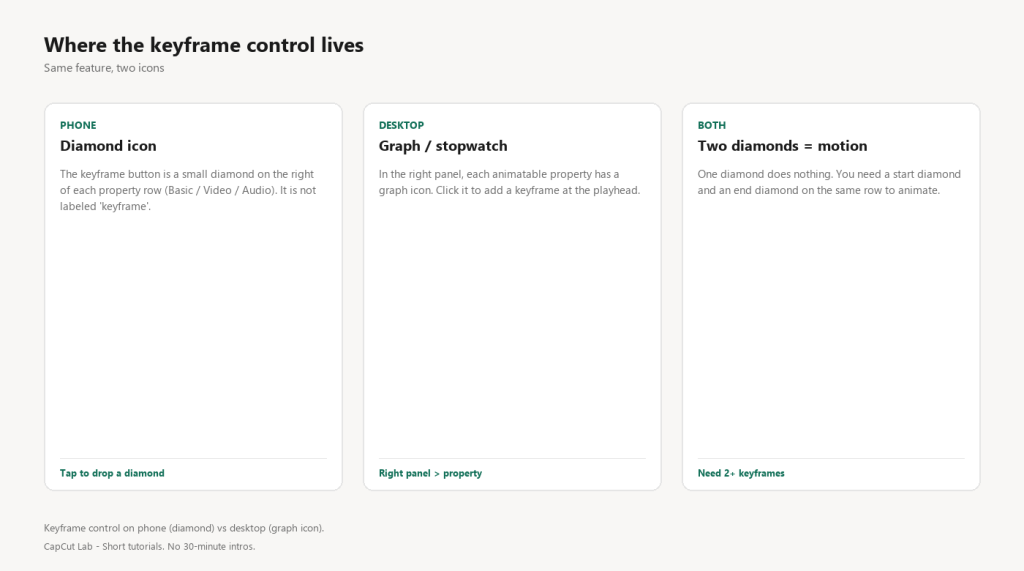
Quick check before the fixes: select the clip, open its settings, and confirm you see at least two keyframe diamonds on the same property line. If there is only one, CapCut has nothing to animate between – that is cause #1 below.
1. You only placed one keyframe
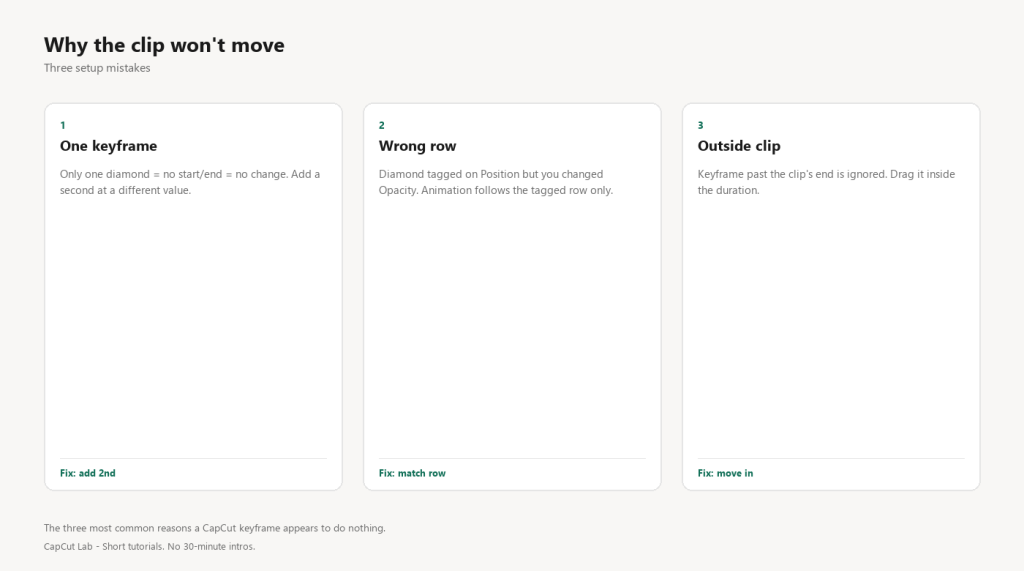
A keyframe marks a state at one point in time. CapCut interpolates between two states. With a single keyframe there is no ‘before’ and ‘after’, so the value never changes and the clip sits still.
Fix
- Select the clip and open the property you want to animate (e.g., Video > Basic > Scale).
- Tap the keyframe diamond at the start of the clip to set state A.
- Move the playhead to where the animation should end.
- Change the value (drag Scale down, or drag the clip on the canvas). CapCut drops a second diamond automatically.
- Press play – the clip now animates between the two states.
2. You keyframed the wrong property
The diamond is per-property. Tapping the keyframe next to ‘Position’ does nothing for opacity. The animation only affects the exact row you tagged, so a fade will not happen if you tagged Position.
Fix
- In the right-side panel, expand the section you care about: Basic (scale/position/rotation), Video (opacity/speed), or Audio (volume).
- Make sure the diamond you tap is on the same row as the value you are changing.
- If you tagged Position but wanted a fade, tap the diamond again to delete those keyframes and tag Opacity instead.
3. The keyframe span is longer than the clip
Keyframes placed outside the clip’s edges are ignored. If your second keyframe sits at 5s but the clip ends at 3s, the move never plays because it falls in dead space.
Fix
- Zoom the timeline so you can see the clip’s start and end handles.
- Drag any stray keyframes inside the clip’s duration.
- On desktop, right-click the clip > ‘Show keyframes’ to see every diamond at once and drag them into range.
4. The layer is locked or you picked the wrong track
Keyframes added while a different layer is selected apply to that layer, not the one you are watching. A locked track also refuses new keyframes.
Fix
- Tap the clip you actually want to animate so its outline highlights.
- On the timeline, check the lock icon on that track and unlock it (phone: long-press track > Lock; desktop: click the lock in the track header).
- Re-add the keyframes on the correct, unlocked clip.
5. Cache or version bug dropped the keyframe
On older CapCut builds a keyframe can be silently discarded after trimming or undo. This is rare but real, especially on Android installs more than a few months old.
Fix
- Update CapCut to the latest build (App Store / Google Play / capcut.com for desktop).
- Clear the cache: phone Settings > Apps > CapCut > Storage > Clear cache (keeps your projects); desktop: CapCut > Settings > Clear cache.
- Re-add the keyframes after the update – they now persist through trim and undo.
Pro tip: Work at 2x timeline zoom when placing keyframes. Most ‘it won’t move’ cases are a second diamond parked one frame outside the clip – you cannot see it until you zoom.
FAQ
Why is my CapCut keyframe greyed out?
The keyframe icon is inactive when no clip is selected, or when the selected item is a static image with no animatable property open. Select a video clip and open its Basic or Video panel first.
Do keyframes work on photos in CapCut?
Yes. A photo on the timeline behaves like a clip – select it, open Basic, and keyframe Scale or Position to create a Ken Burns pan or zoom.
Why did my keyframes disappear after I cut the clip?
Trimming can drop diamonds that fell outside the new edges, or a version bug removed them. Update the app and re-add them; on desktop use ‘Show keyframes’ to verify placement before exporting.
Can I copy keyframes between clips?
No direct copy. You have to recreate them, but you can save the clip (with its keyframes) as a template or sticker so the motion is reusable across projects.
Keyframe vs Animation tab – what is the difference?
The Animation tab applies a preset move to the whole clip. Keyframes give per-property, custom control (e.g., scale in while fading). Use keyframes when a preset is not enough.