You hit Export, the bar flies to 99%, and then it sits. Or it crawls so slowly you could age a bottle of wine. Or it fails outright with a codec error you do not understand.
Those three failures have three completely different causes, and the fixes are not interchangeable. Figure out which one you have before you touch a setting.

Failure 1: Stuck at 99% or endlessly processing
This almost always means CapCut is choking on the final encode, not on the edit itself. The preview played fine because previews are low-resolution and CPU-based. Export is full-resolution and often GPU-based, which is where weak links show up.
First, check your storage. CapCut needs scratch space to write temporary frames during export. If your C: drive or project drive is below 10 GB free, the encoder runs out of room right at the end. Free space, then retry.
Second, look for a single corrupted asset. A downloaded transition, an odd-frame-rate clip, or a screen recording with a variable frame rate can hang the encoder at the exact frame it hits it. Split your timeline in half, export each half. If one half fails, keep splitting until you find the bad clip, then replace or re-encode it.
Third, update CapCut. Export bugs are patched regularly, and the “stuck at 99%” failure has a long history of being a version-specific encoder issue.
Failure 2: Export is slow but finishes
Slow exports are usually a settings mismatch. CapCut is re-rendering things it should not have to.
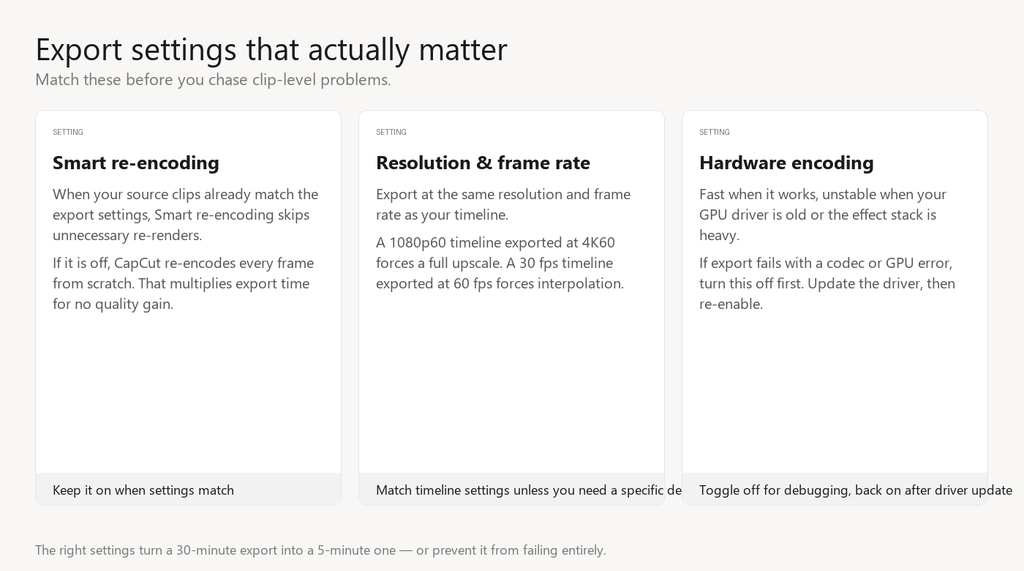
Make sure **Smart re-encoding** is on if your clips already match your export settings. Without it, CapCut re-encodes every frame even when nothing changed.
Export at your source resolution and frame rate. A 1080p60 timeline exported at 4K60 forces a full upscale. A 30 fps timeline exported at 60 fps forces frame interpolation. Both are expensive.
Close other programs during export. CapCut is already using CPU, GPU, and disk bandwidth; do not make it fight a browser with forty tabs.
Failure 3: Export fails with a codec or GPU error
This is hardware acceleration desync. CapCut hands the encode to your GPU, and the GPU driver chokes on the mask, effect stack, or resolution.
Go to **Settings → Performance**, uncheck **Speed up hardware encoding** (and **hardware decoding** if it is there), restart CapCut, and export again. It will be slower, but it will finish.
If that fixes it, update your GPU driver before you turn hardware encoding back on. Old drivers are the single most common cause of codec errors during CapCut export.
Pro tip
If you have a long video, export it in chunks and join them. A 45-minute export is far more likely to hit a random frame error than three 15-minute exports.
FAQ
Why does CapCut export keep failing at the same percentage?
It is hitting the same bad frame or asset. Split the timeline around that percentage to isolate it.
Does closing the preview window speed up export?
Only slightly. The real wins come from matching source settings and turning off unused tracks/effects.
Will exporting at lower quality help?
It helps file size, not reliability. A codec error usually happens regardless of bitrate.