Can’t find the keyframe button in CapCut? It’s a diamond on phone and a graph icon on desktop, and it greys out for specific reasons. Here is exactly where it is and why it may be hidden.
CapCut never calls it ‘keyframe’ in the phone UI – it is a diamond. On desktop it is a graph/stopwatch icon in the right panel. If you are tapping where a YouTube tutorial shows but your version differs, use the locations below.
1. Phone: it’s a diamond, not a button
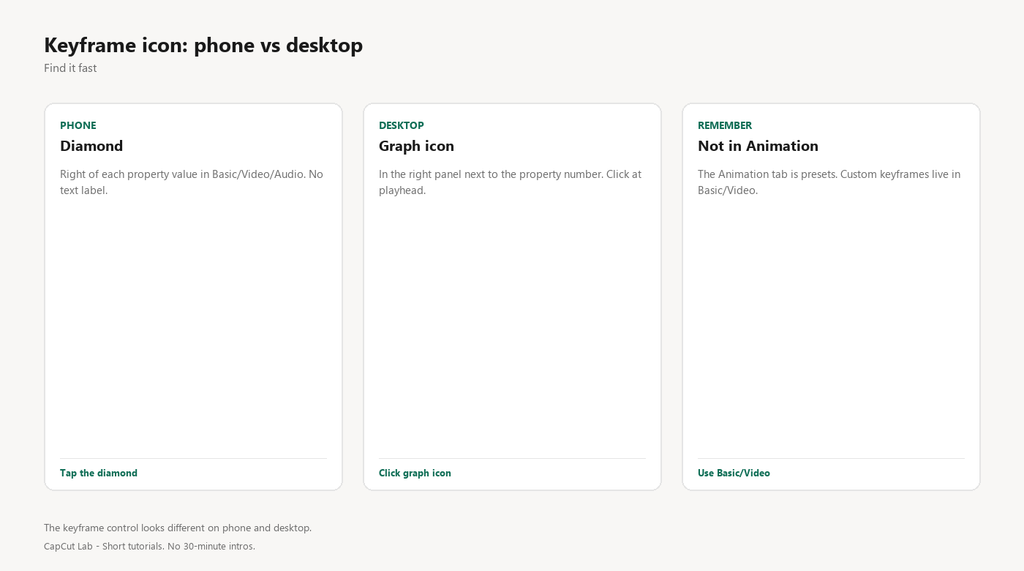
On iOS/Android the control is a small diamond sitting to the right of each property value (Scale, Position, Opacity, Volume). Tutorials that say ‘tap Keyframe’ are using desktop; on phone you tap the diamond.
Fix
- Select the clip.
- Open the panel: Basic (scale/position/rotation) or Video (opacity).
- Look right of the value field for a diamond outline and tap it to drop a keyframe.
2. Desktop: it’s the graph icon in the right panel
On Windows/Mac the keyframe control is a graph icon next to each property in the right-hand panel, not a floating button you hunt for on the canvas.
Fix
- Click the clip so the right panel shows its settings.
- Find the property (e.g., Scale). Next to the number is a graph icon.
- Click the graph icon at the playhead to add a keyframe; click it again to remove.
3. Greyed out: no clip selected or no animatable property
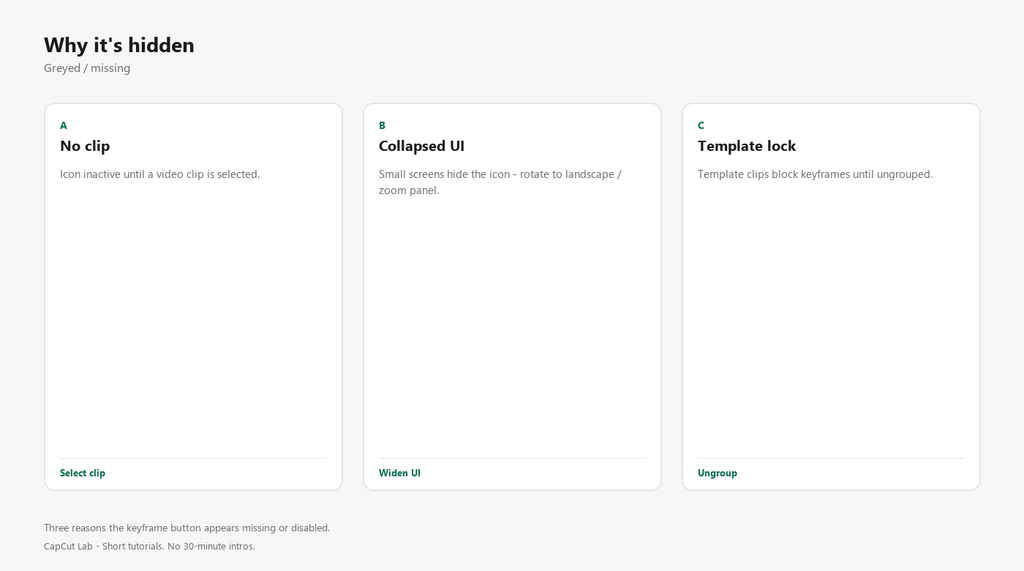
The icon is inactive until a clip with animatable properties is selected. Some text presets lock transforms, which also greys it.
Fix
- Click the actual video clip on the timeline, not empty space.
- If it is a text preset, switch to ‘Basic’ and try Scale/Position there.
- For stickers, select the sticker and use the same diamond/graph control.
4. Version moved it: ‘Animation’ tab vs ‘Keyframe’
Newer CapCut groups motion under an ‘Animation’ tab (preset moves) while custom keyframes stay in Basic/Video. Users hunting under Animation never see the diamond.
Fix
- Open the clip > Basic or Video panel for custom keyframes (diamond/graph).
- Use the Animation tab only for one-tap preset moves.
- If your build shows neither, update CapCut – old builds hid the icon behind a long-press.
5. Template or protected clip disables keyframes
Clips inside a locked template or a ‘protected’ project element cannot be keyframed until you break the template apart.
Fix
- Long-press the template > ‘Ungroup’ / ‘Detach’.
- Select the now-free clip and open Basic.
- The diamond/graph icon becomes active.
Pro tip: If you literally cannot see any diamond, rotate your phone to landscape or zoom the right panel – on small screens CapCut collapses the property row and hides the icon until there is enough width.
FAQ
Where is the keyframe button on CapCut iPhone?
Select a clip, open the panel (Basic or Video), and tap the diamond to the right of Scale/Position/Opacity. It is not text-labeled.
Where is keyframe on CapCut PC?
Click the clip, open the right panel, and click the graph icon next to any animatable property at the playhead.
Why is the keyframe icon greyed out?
No clip selected, or the selected element has no animatable transform open. Select a video clip and open Basic.
Did CapCut remove keyframes?
No. They moved the UI in some versions – diamond on phone, graph on desktop, custom keyframes under Basic/Video rather than the Animation tab.
How do I keyframe text in CapCut?
Select the text layer, open its panel, and use the same diamond/graph on Scale or Position. Some animated text presets lock transforms until you pick a plain style.