CapCut easing makes motion start slow and end smooth instead of robotic. If the curve editor is missing or the bezier won’t apply, here are the exact reasons and the menu paths to fix them on phone and desktop.
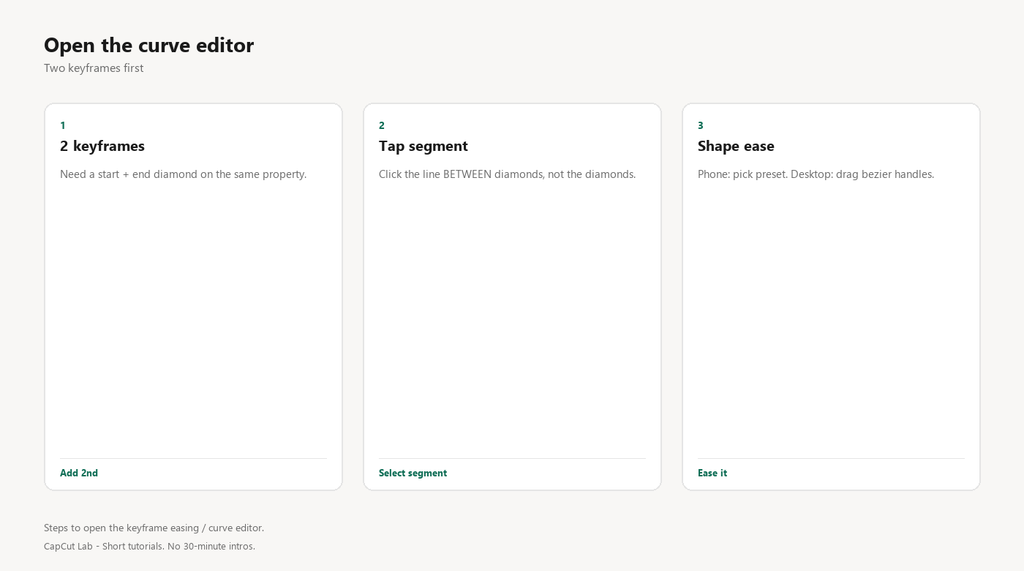
Easing (the curve/bezier) only appears after you have at least two keyframes on a property and you select the segment between them. A single keyframe, or selecting the point instead of the segment, is why the editor stays hidden.
1. Curve editor missing – fewer than two keyframes
There is no segment to curve until two diamonds exist on the same property. With one, CapCut shows linear only.
Fix
- Add a second keyframe on the same property at a different value.
- Tap the space between the two diamonds (the segment), not the diamonds themselves.
- The curve/easing panel opens for that segment.
2. Bezier applied to a point, not the segment
Tapping a diamond edits that keyframe’s in/out, but the visible ease comes from the segment between two. Editing only one end does little.
Fix
- Select the segment (between diamonds).
- Drag the bezier handles to shape the ease-in/ease-out.
- Play back – the motion now accelerates and decelerates.
3. Speed ramp needs the Speed curve, not a normal keyframe
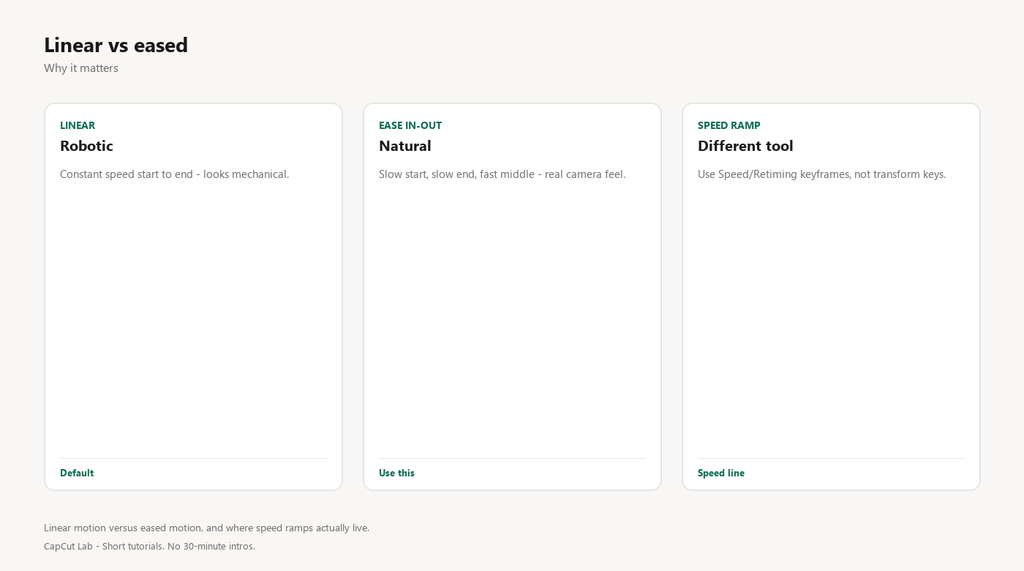
To ramp playback speed you must use the clip’s Speed control with keyframes on the speed line, not keyframes on Scale/Position.
Fix
- Select the clip > Speed (or ‘Retiming’).
- Enable ‘Custom’ / curve speed and add keyframes on the speed line.
- Drag the line up to speed up, down to slow – this is the ramp.
4. Easing resets after trimming the clip
Trimming can re-linearize the segment or drop the curve on the cut edge, a known quirk on mobile.
Fix
- Apply easing after you have finalized the trim.
- If it resets, re-select the segment and re-drag the bezier.
- On desktop, keyframes are more stable through trims – consider finishing there.
5. Desktop and mobile curve UIs differ
Desktop shows a full graph editor with draggable handles; mobile shows preset ease options (linear, ease in, ease out, ease in-out) per segment. Users expecting drag handles on phone will not find them.
Fix
- On phone: select segment > Easing > pick Linear / In / Out / In-Out.
- On desktop: select segment > open curve editor > drag handles for custom bezier.
- Match your expectation to the platform.
Pro tip: Set easing LAST. Build the keyframe motion first, then shape the segment. Reshaping before both endpoints exist just resets to linear.
FAQ
Where is the easing/curve option in CapCut?
After two keyframes exist on a property, tap the segment between them. Phone shows ease presets; desktop opens a draggable curve editor.
Why can’t I drag the bezier handles on my phone?
Mobile uses preset eases (Linear/In/Out/In-Out), not draggable handles. Use those presets, or switch to CapCut desktop for custom beziers.
How do I speed ramp in CapCut?
Use the clip’s Speed/Retiming control and add keyframes on the speed line, then drag the line. Normal keyframes on transform will not change playback speed.
Why does my easing disappear after cutting?
Trimming can re-linearize the segment on mobile. Finalize the trim first, then apply easing, or finish on desktop where keyframes hold better.
Is keyframe easing the same as the Animation tab?
No. The Animation tab applies a preset move with its own built-in ease. Manual keyframe easing gives per-segment custom control you shape yourself.