You tap the microphone icon, watch the timer run, speak your line — and the clip that lands on the timeline is empty. Or the Record button does nothing at all. CapCut gives you no error message either way, which makes it feel like a bug. In practice, almost every silent-recording case traces back to one of four causes: a blocked permission, the wrong input device, the “mute project” toggle, or another app holding the mic.
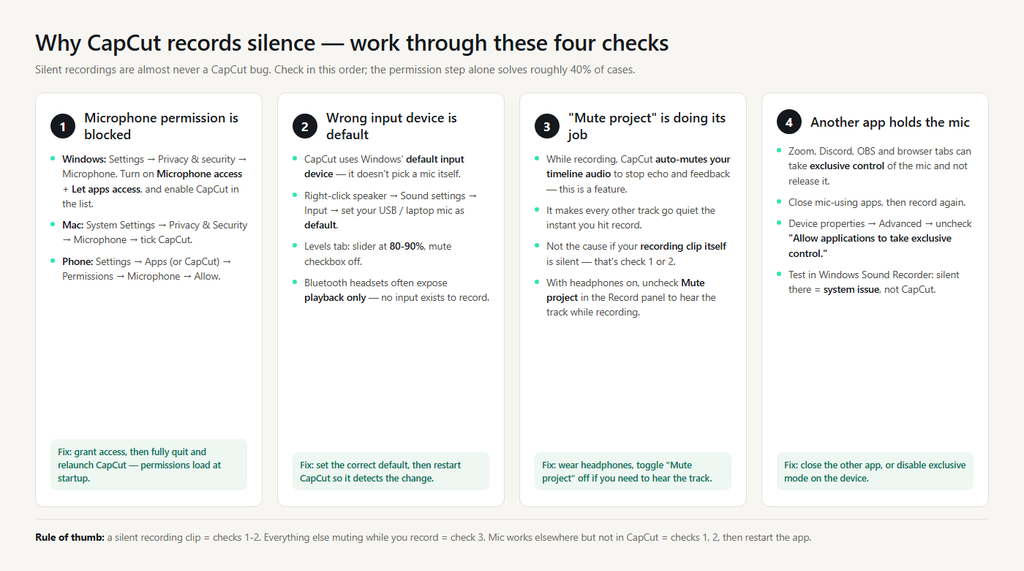
Here is the order to work through them. Start with the permission check — roughly 40% of “no sound” cases are solved there, before you touch anything else.
Fix 1: CapCut doesn’t have microphone permission
This is the single most common cause on desktop. Windows and macOS both block microphone access by default, and CapCut only records once you’ve allowed it.
On Windows: open Settings → Privacy & security → Microphone. Turn on both “Microphone access” and “Let apps access your microphone,” then scroll down and make sure CapCut is listed and enabled. If CapCut isn’t in the list, close it completely and reopen it — Windows registers desktop apps when they start, not while they’re running.
On macOS: open System Settings → Privacy & Security → Microphone and tick the CapCut checkbox. If the app isn’t listed, quit and reopen it once.
On mobile: iPhone — Settings → CapCut → Microphone → Allow. Android — Settings → Apps → CapCut → Permissions → Microphone → Allow.
After changing a permission, fully quit CapCut and relaunch it. Permissions are read at startup, so granting them mid-session doesn’t always take effect until the next launch.
Fix 2: The wrong input device is selected
CapCut desktop doesn’t pick your mic itself — it uses whatever Windows has set as the default input device. Two common traps: you plugged in a USB or wireless mic and Windows kept the laptop mic as default, or a Bluetooth headset is the default but only exposes an output profile, not a microphone.
Right-click the speaker icon → Sound settings → Input, and confirm the device you want to record with is selected and set as default. Open the device’s properties and check the Levels tab: the slider should be around 80-90%, and the mute checkbox must be off. Then quit and reopen CapCut so it picks up the change.
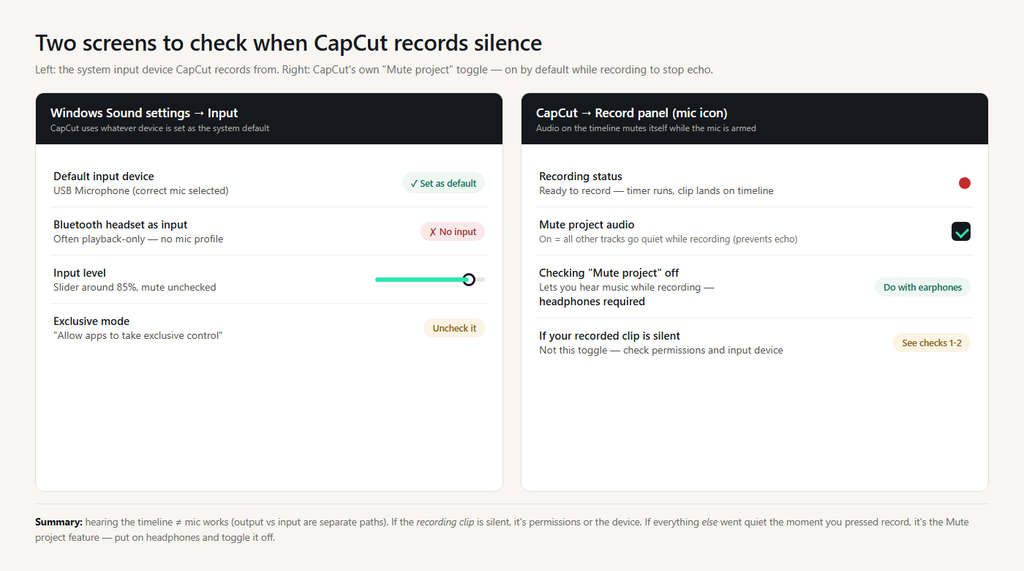
If your headset is Bluetooth, test the laptop’s built-in mic or a wired mic instead. Many Bluetooth headsets report as a playback-only device to Windows, so CapCut has no input to record from — and no amount of app-side fixing changes that.
Fix 3: “Mute project audio” is on — this one is a feature, not a bug
Here’s the one that makes people think CapCut is broken: you start recording and every other audio track on the timeline instantly goes silent. That’s intentional. CapCut mutes your project audio while the mic is armed so your microphone doesn’t record the music playing through your speakers, which would give you echo and doubled audio in the final edit.
If you’re wearing headphones and want to hear the track while you record, turn the mute off. On desktop, open the Record panel (microphone icon above the timeline) and uncheck “Mute project” or “Mute project audio.” On mobile, tap Audio → Voiceover, and toggle off “Mute project audio” near the record button. Keep headphones on — with the toggle off and speakers blasting, the mic will pick up the room sound.
If the recording is silent but the other tracks are playing normally, this toggle is usually not your problem — go back to Fix 1 or 2.
Fix 4: Another app is holding the microphone
Windows allows applications to take exclusive control of a mic, and some apps (Zoom, Discord, OBS, a browser tab) don’t release it. When that happens, CapCut shows the mic as available but captures nothing.
Close apps that might be using the mic, then test. If you want to stop exclusivity for good: in the mic’s Sound settings → More sound settings → Recording tab → double-click your device → Advanced → uncheck “Allow applications to take exclusive control of this device.”
The fastest way to separate a CapCut problem from a system problem is a two-second test: open Windows’ built-in Sound Recorder (or Voice Memos on a phone) and record there. If that’s also silent, the issue is the device or permission at the system level — not CapCut — and Fix 1 and 2 are where the answer lives.
What to try when none of the above is it
Restart CapCut. Detection failures — the mic works in Windows but the Record panel doesn’t see it — usually clear on relaunch.
Restart the computer. Audio services occasionally wedge after a Bluetooth device disconnects. This is the one case where a reboot legitimately fixes a microphone problem.
Update CapCut. Recording bugs in specific builds get patched; check your app store or the desktop download page for the current version.
Record in a separate app and import the file. Not a fix, but a reliable workaround for today’s deadline: record in your phone’s voice memos or Audacity, drop the file on the timeline, and keep editing. You lose a little convenience, not the content.
FAQ
Why does CapCut record a clip with no sound in the timeline? Almost always a permission issue (Fix 1) or the wrong default input device (Fix 2). Check those two before anything else.
Why can I hear music in CapCut but the mic records nothing? Playback and recording are different paths. Hearing audio means your output device works; recording needs a working input device with permission — the two are unrelated.
Why did my mic stop working after I connected Bluetooth headphones? Bluetooth headsets frequently switch the default input to a profile with no microphone. Set the input back to your USB mic or laptop mic in Windows Sound settings (Fix 2).
I un-muted the project audio and now my recording has echo. What happened? The mic is picking up the speakers. That’s exactly the problem “Mute project” exists to prevent — put headphones on, or turn the toggle back on.