You open CapCut expecting your project list and the edit you spent hours on is gone. No warning, no delete confirmation — just an empty row where it used to be. Before you assume the worst: CapCut has several places a project can hide, and only one of them means actual data loss. Most “disappeared” drafts are found in the Trash, in a cloud space attached to a different account, or still on disk in a draft folder the app stopped showing.
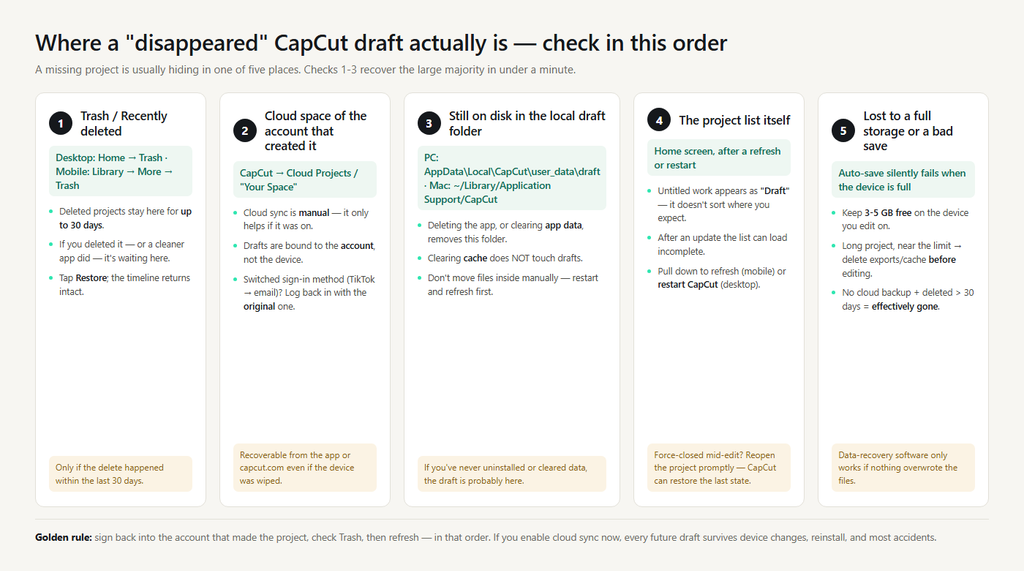
Work through these in order — the first two recover the majority of missing projects in under a minute.
Fix 1: Check the Trash first (deleted projects sit there for 30 days)
If you deleted the project — or a cleanup app did — it isn’t gone for a month. CapCut keeps deleted projects in a Trash / “Recently deleted” folder for up to 30 days before permanently removing them.
Desktop: Home → Trash. Mobile: tap Library (or the project tab) → More → Trash. If your project is there, tap Restore and it returns to the project list with its timeline intact.
Fix 2: Log into the account that created it and check the cloud
CapCut’s cloud space (“Your Space” / Cloud Projects) is separate from local drafts, and it’s tied to the account you were signed into. Cloud sync is not automatic — it only contains drafts if you enabled it — but if you did, the project can be recovered from the web or the app even if your device was wiped.
This is where the account split bites: if you changed how you sign in — say, you used to log in with TikTok and now use email, or you switched accounts after the 2025 USDS restructure — your old cloud drafts sit in the space of the account that created them. Sign out and back in with the original login method, then open Cloud Projects. A “disappeared” draft that’s actually in another account’s space will reappear the moment you’re in the right account.
Fix 3: The draft is still local — refresh the list and look for untitled projects
Sometimes nothing is lost at all. Drafts that never got a name appear as “Draft” or “Untitled” entries, and after an app update the list can load out of order or incompletely.
Pull down to refresh the project list (mobile), or restart CapCut (desktop). Scroll the whole list — an untitled draft doesn’t sort where you expect. If you recently force-closed the app mid-edit, reopen the project right away; CapCut keeps a recovery state in temporary storage that it can restore if you open the project promptly.
Fix 4: The local draft folder was affected — know what deletes drafts
CapCut saves drafts to a folder on your device, and certain actions remove that folder. The distinction matters:
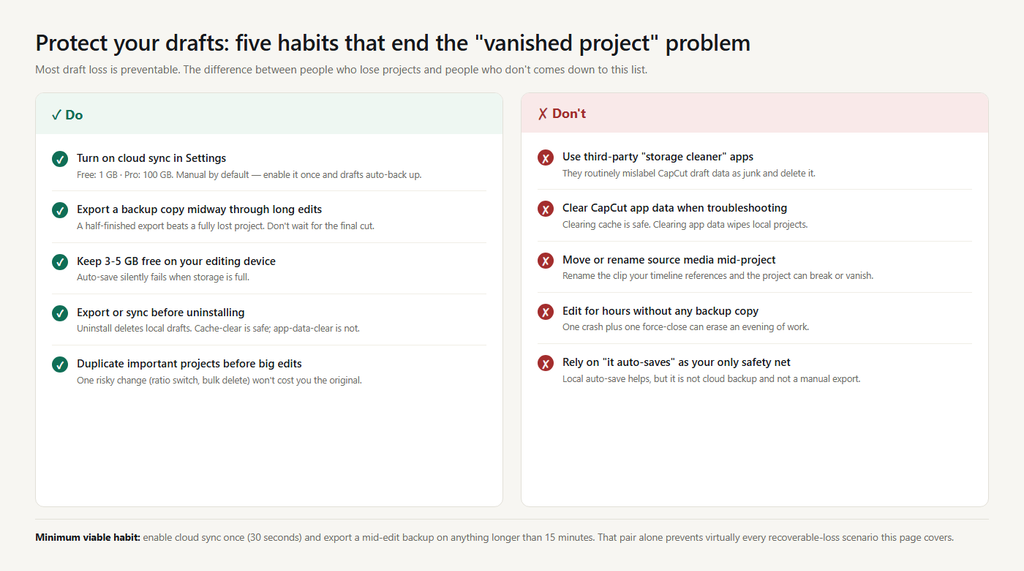
- Clearing cache does NOT delete drafts. It’s safe and frees space.
- Clearing app data DOES delete local drafts. Never do this without backing up first.
- Uninstalling CapCut deletes local drafts. Export projects or enable cloud sync before uninstalling.
- Third-party “storage cleaner” apps frequently mislabel CapCut data as junk and delete it. Avoid them.
On desktop, local drafts live under your user folder (commonly AppData\Local\CapCut\user_data\draft on Windows and ~/Library/Application Support/CapCut on macOS, depending on install). If you know the draft folder still exists but the project list doesn’t show it, don’t move or rename files inside it manually — restart the app and refresh the list first. Manual file surgery is a last resort, done only after you’ve backed the folder up.
Fix 5: Storage ran out mid-save
CapCut periodically auto-saves draft data as you edit, but if the device is completely out of space, the save can silently fail — and the project list then shows an older or incomplete version. Keep at least 3-5 GB free on the device you edit on, and if you’re near the limit, delete exports and cache before you start a long session, not after.
What to try when none of the above is it
Check both lists. If you’re signed into a CapCut account, drafts can exist locally, in the cloud, or both — and the home screen sometimes only shows one. Look at local drafts and Cloud Projects before concluding the project is gone.
Search the desktop draft folder by name. If the folder exists on disk with your project’s files inside, reinstalling CapCut and pointing it at the same user data can bring the draft back into the list.
Accept the cutoff. A draft that was deleted more than 30 days ago, never had cloud sync enabled, and isn’t in the local folder is effectively unrecoverable. Data-recovery software is a long shot and only works if nothing has overwritten the files. Your time is better spent building the recovery habits below.
The habits that end this problem: enable cloud sync in Settings (free users get 1 GB, Pro gets 100 GB); export a backup copy halfway through long edits rather than only at the end; never use storage-cleaner apps on your CapCut folder; and keep the device at least 3-5 GB free.
FAQ
Does uninstalling CapCut delete my drafts? Yes. Local drafts live inside CapCut’s app data and are removed when the app is uninstalled. Export important projects or turn on cloud sync first.
Does clearing CapCut’s cache delete projects? No. Cache is temporary render data; drafts are stored separately. Clearing cache is safe and won’t touch your projects — clearing app data is the destructive option.
Is cloud sync on by default? No. CapCut saves drafts locally by default, and cloud sync must be enabled manually in your account settings. Free accounts get 1 GB of cloud space; Pro gets 100 GB.
My project vanished after I switched from TikTok sign-in to email. Where is it? It’s almost certainly in the cloud space of the account that created it. Sign out and back in with the original login method, then check Cloud Projects.