Slug: capcut-auto-beat-sync-not-working · Meta description: ** CapCut auto beat sync not working? Fix beats that won’t detect, clips that won’t snap, or sync that drifts. Covers the 5 real causes with fixes.
Auto beat sync reads your audio’s waveform and drops markers so clips land on the beat. When it fails, the markers are missing, the clips won’t snap, or the whole thing drifts. The cause is almost always the audio source, a quiet track, a cached analysis, or applying it to the wrong layer. Run the checks below in order.
Problem 1: Audio is offline or cached
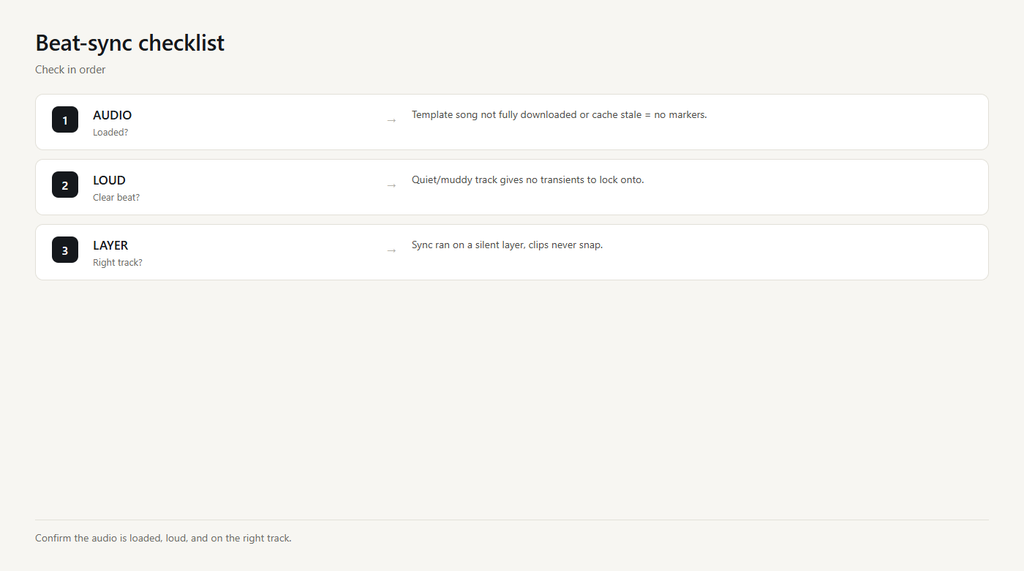
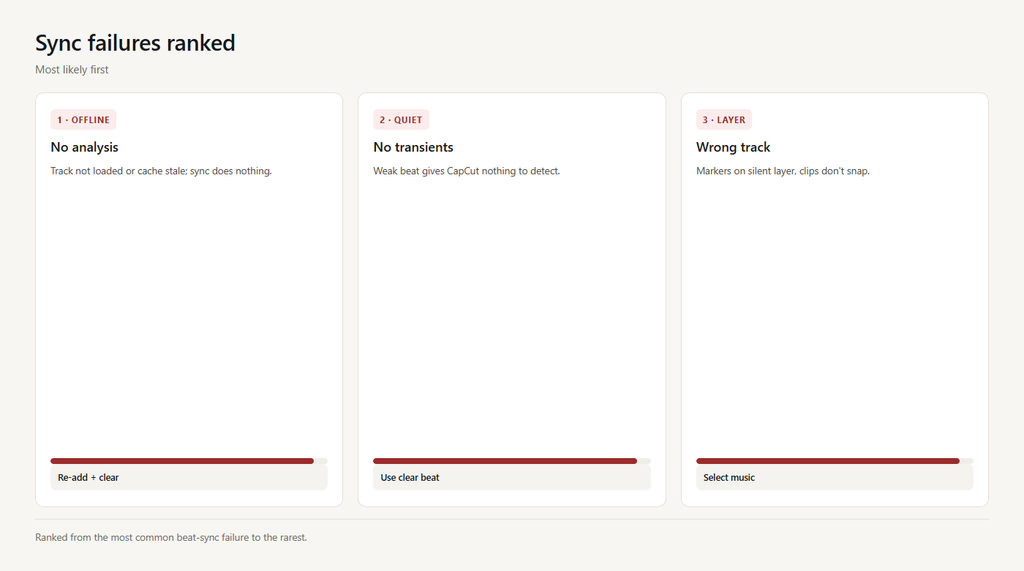
CapCut analyzes the audio file locally. If the track failed to fully download (a template song) or the analysis cache is stale, beat detection returns nothing and the sync button does nothing.
- Re-add the audio clip from local storage instead of a streaming template song.
- Clear cache in Settings > Clear cache, then re-open the project.
- Tap Auto beat sync again; markers should now appear.
Problem 2: Track too quiet or muddy
Beat detection needs a clear rhythmic signal. A near-silent voiceover or a track buried under noise gives CapCut no transients to lock onto, so it places no beats.
- Raise the audio Volume and cut competing tracks so the rhythm is clear.
- Use a song with a strong kick/beat rather than ambient sound.
- Re-run Auto beat sync on the cleaner signal.
Problem 3: Applied to the wrong layer
Beat markers attach to the audio track you selected. If you ran sync on a silent layer, the clips on your video track never get the snap points.
- Select the actual music/audio track that carries the beat.
- Run Auto beat sync on that track only.
- Your video clips now snap to the generated markers.
Problem 4: Clips can’t be split to fit
Beat sync works by cutting clips at markers. If your clips are shorter than the beat spacing or locked, CapCut can’t place them and the sync looks off.
- Use clips at least as long as the average beat interval.
- Unlock and ungroup clips so they can be split at markers.
- Re-run sync; clips now cut on the beat.
Problem 5: Drift after export
A stale preview or frame-rate mismatch can make the sync look right in editor but drift after export, because the audio and video were encoded at different rates.
- Match the project frame rate to the export frame rate (e.g., 30 or 60).
- Clear cache and re-render the preview before exporting.
- Export and check the beat lines up in the final file.
FAQ
Where is auto beat sync in CapCut?
Select the audio or music track, then look for ‘Auto beat sync’ (sometimes ‘Beat sync’) in the audio panel. It scans the track and drops beat markers you can snap clips to.
Why won’t CapCut detect the beat?
The track is too quiet, muddy, or a streaming template song didn’t fully load. Raise volume, use a clear beat, re-add the audio locally, and clear cache.
Why do my clips not snap to the beat?
Beat markers attach to the track you selected. Run Auto beat sync on the actual music track, not a silent layer, and your clips will snap.
Does CapCut beat sync work on voiceovers?
It can, but a steady spoken rhythm works better than a quiet one. Raise the voiceover volume and cut background noise so the detector has clear transients.
Why does beat sync drift after export?
A frame-rate mismatch between project and export causes drift. Match the rates and clear the preview cache before exporting.