Slug: capcut-zoom-transition · Meta description: ** Learn the CapCut zoom transition step by step – the smooth push-in that flows between clips. Fixes for when the zoom jump cuts instead of gliding.
The zoom transition (a quick scale-up on clip A into a scale-down on clip B) is the most-requested CapCut move, but it falls apart when the two clips don’t match speed, when keyframes aren’t set on both, or when the overlap is wrong. Below is the exact setup plus the failure modes that turn a glide into a jump cut.
Problem 1: Only one clip has keyframes
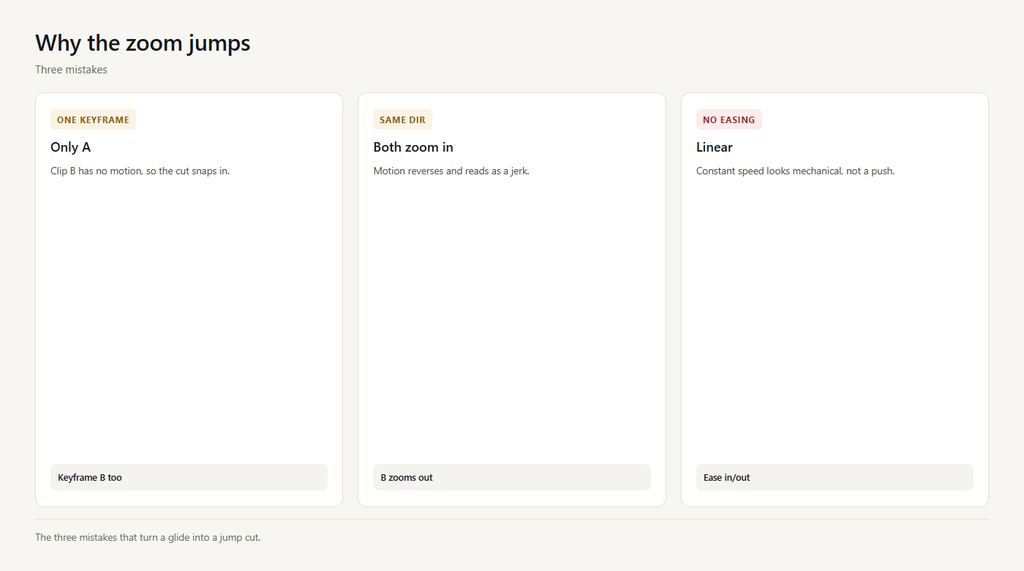
The zoom needs a scale keyframe at the end of clip A (zoom in) and at the start of clip B (zoom out). If you keyframe only clip A, the second clip snaps in with no motion and the transition jumps.
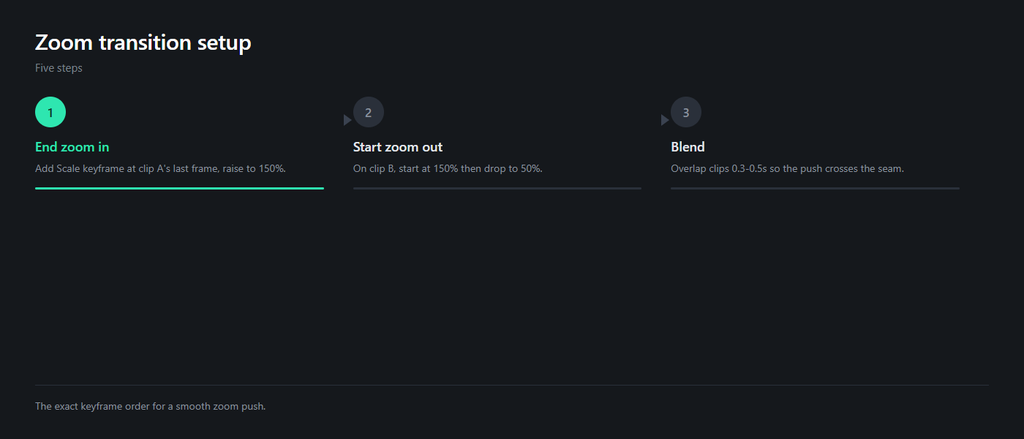
- On clip A, add a Scale keyframe at its last frame and raise scale to about 150%.
- On clip B, add a Scale keyframe at its first frame at 150%, then a second at about 50%.
- Both clips now animate, so the cut glides instead of snapping.
Problem 2: Mismatched zoom direction
If clip A zooms in but clip B also zooms in, the motion doubles back and the cut reads as a jarring reverse. The second clip must zoom out to meet the first.
- Set clip A’s end keyframe to a higher scale (zoom in).
- Set clip B’s start keyframe to the same high scale, then drop it lower (zoom out).
- Match the start/end numbers so the speed feels continuous.
Problem 3: No overlap to blend
Like any transition, the zoom push needs the clips to overlap slightly. With no overlap the keyframes still fire but there’s no crossfade, so it looks like a hard cut with a scale pop.
- Overlap the two clips by 0.3-0.5s on the timeline.
- Add a small crossfade or let the scale overlap carry the blend.
- Preview to confirm the push flows across the seam.
Problem 4: Easing set to none
Linear scaling looks mechanical. With no easing the zoom moves at a constant speed and reads as a jump rather than a smooth push.
- Open the keyframe easing menu on both clips.
- Choose ‘Ease in’ on clip A’s end and ‘Ease out’ on clip B’s start.
- The motion now accelerates and settles like a real camera push.
Problem 5: Different clip resolutions
When clip A is 4K and clip B is 1080p, the scale percentages map to different pixel sizes, so the zoom speed and framing don’t match and the transition stutters.
- Match both clips to the same project resolution before scaling.
- Re-apply the keyframes after matching so the percentages line up.
- Export at the lower common resolution to keep it stable.
FAQ
How do I do the zoom transition in CapCut?
Add a Scale keyframe at the end of clip A and raise it, then on clip B add a start keyframe at the same scale that drops lower, with a small overlap between clips. The push glides across the cut.
Why does my CapCut zoom transition jump cut?
Usually only one clip has keyframes, or the two clips zoom the same direction. Keyframe both clips and make clip B zoom out to meet clip A.
What scale should I use for the zoom transition?
Around 130-160% at the peak works for a clean push. Match the start and end percentages on both clips so the speed feels continuous.
Do I need a transition preset for the zoom effect?
No. The zoom transition is built from Scale keyframes and an overlap; you don’t need a preset. Presets just pre-fill the keyframes.
Why is my zoom transition choppy on export?
Mismatched clip resolutions or no easing cause stutter. Match both clips to one resolution and add Ease in/out so the scale moves smoothly.