Slug: capcut-transition-not-working · Meta description: ** CapCut transition not working? Fix transitions that won’t play, won’t apply, or vanish on export. Covers the 5 real causes with step-by-step fixes.
You dropped a transition between two clips, hit play, and nothing animates – or it disappears on export. Most ‘transition not working’ cases aren’t a bug; they’re one of five setup mistakes: no overlap room, a default duration of 0, applying to the wrong layer, a cached preview, or a project that exceeds device limits. Start by checking whether the two clips actually overlap where the transition sits.
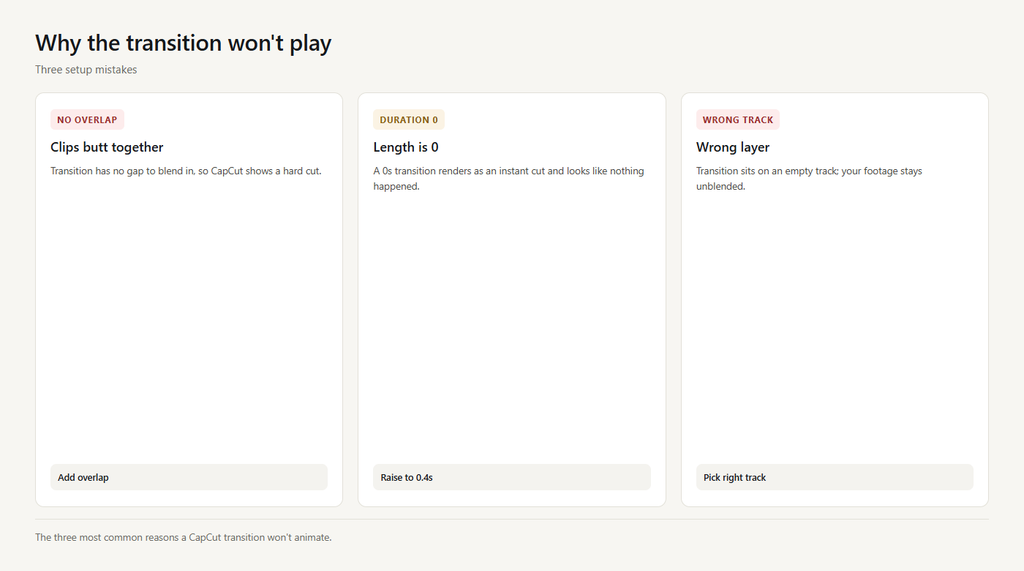
Problem 1: Clips don’t overlap
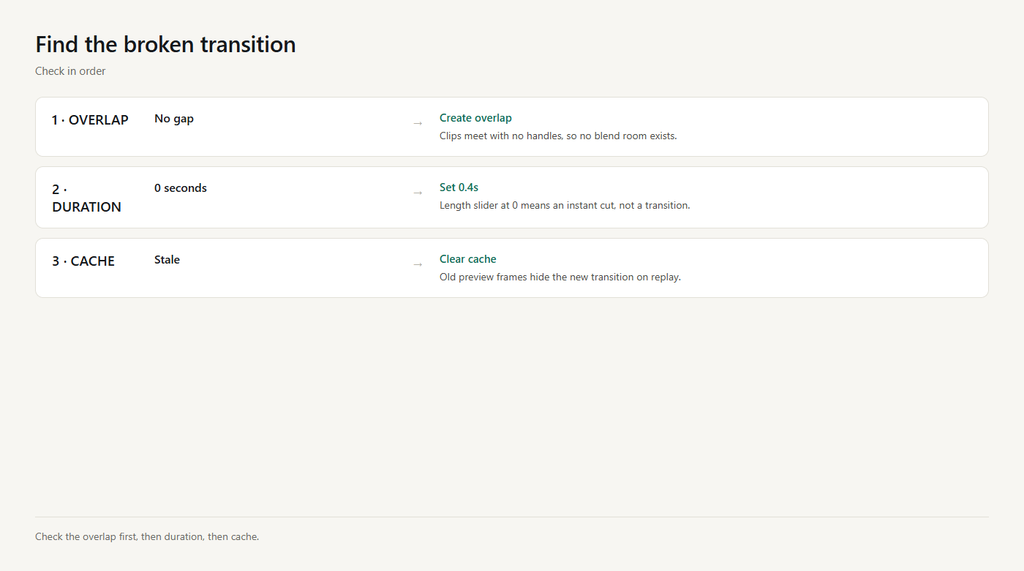
CapCut transitions live in the gap between two clips. If the clips butt together with no handles, there is no room for the animation to blend, so CapCut shows a hard cut instead of a transition.
- Select the first clip and drag its right edge left to create a short tail overlap with the next clip.
- Open Transitions and tap a style; it now snaps into the overlap instead of being rejected.
- Keep at least 0.3s of overlap on each side so the blend has frames to work with.
Problem 2: Transition duration is 0
After adding a transition you can set its length. If the duration slider is at 0 (or a fraction of a second), the effect renders as an instant cut and looks like nothing happened.
- Tap the transition on the timeline to open its settings.
- Drag Duration up to 0.3-0.5s; anything under 0.2s looks like a flash, not a transition.
- Preview; the animation should now be visible between the clips.
Problem 3: Applied to the wrong track
Transitions apply to the track you selected. If you placed the transition on a main-video track but the visible action is on an overlay track, the blend happens on the empty layer and your footage stays unblended.
- Confirm which track holds the two clips you want to blend.
- Select that track, then add the transition so it sits between those specific clips.
- On overlay tracks, make sure both neighboring clips exist on the same overlay line.
Problem 4: Stale preview cache
CapCut caches the preview. If you changed the transition after a first render, the player sometimes shows the old cached frames and the new transition appears not to play.
- Close the project preview and reopen it, or scrub past the cut and back.
- Clear cache in Settings > Clear cache, then rebuild the preview.
- Replay the segment to confirm the transition now animates.
Problem 5: Device or project limit hit
Very long projects or low-RAM devices can drop heavy transitions during playback or export because the effect can’t be processed in time, leaving a hard cut.
- Lower project resolution temporarily to 1080p while editing the transition.
- Close other apps to free memory before exporting.
- If it still drops, split the project and export in two parts, then merge.
FAQ
Where are transitions in CapCut?
Select the seam between two clips on the timeline, then tap the Transitions button (the icon between the scissors and the sticker). The style panel opens from there on both phone and desktop.
Why is my CapCut transition just a hard cut?
Usually the two clips don’t overlap, or the transition duration is set near 0. Create a small overlap and raise the duration to 0.3-0.5s; the cut turns into a blend.
Do CapCut transitions work on overlay tracks?
Yes, but the transition must sit between two clips on the same overlay line, and both neighbors need to exist there. A transition placed on the main track won’t blend an overlay.
Why did my transition disappear after export?
A stale preview cache or a device that hit its processing limit can drop the effect on export. Clear cache and export at 1080p with other apps closed; split long projects if it keeps happening.
Can I save a transition as default in CapCut?
Yes. After picking a style, set its duration, then tap ‘Set as default’ (phone) so future transitions use that style and length automatically.