CapCut face blur drifting off or sitting still while the person moves? Fix the 5 real causes – static blur sticker instead of tracked blur, lost tracking, wrong layer, missing keyframes, and export drop – with exact phone and desktop steps.
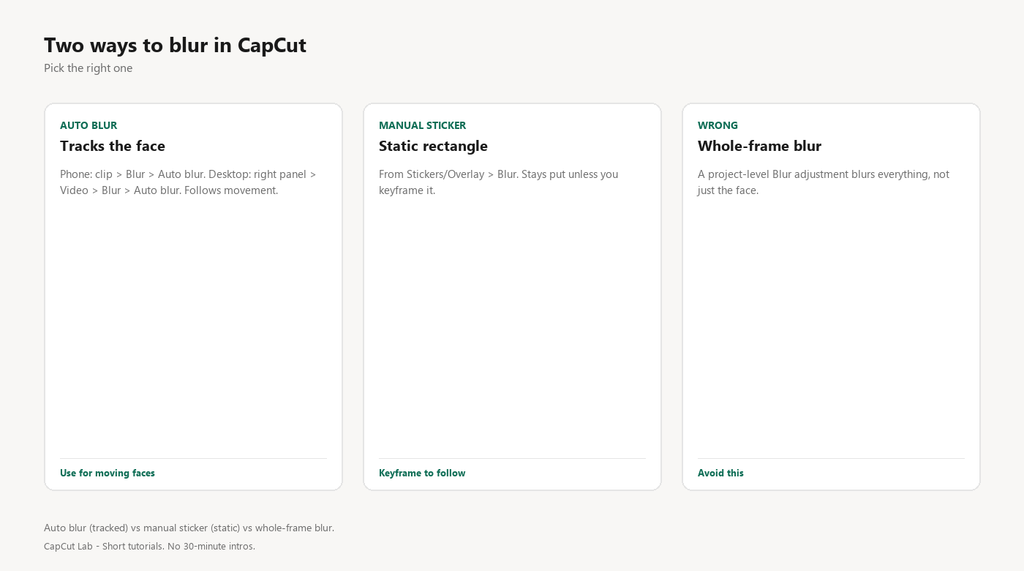
First confirm which kind you used: CapCut has BOTH a one-tap ‘Auto blur’ that locks onto and follows a face, and a manual blur sticker you must move yourself. If your blur stays put while the person walks, you used the manual sticker without tracking. Check which one before the fixes below.
1. You added a static blur sticker, not tracked blur
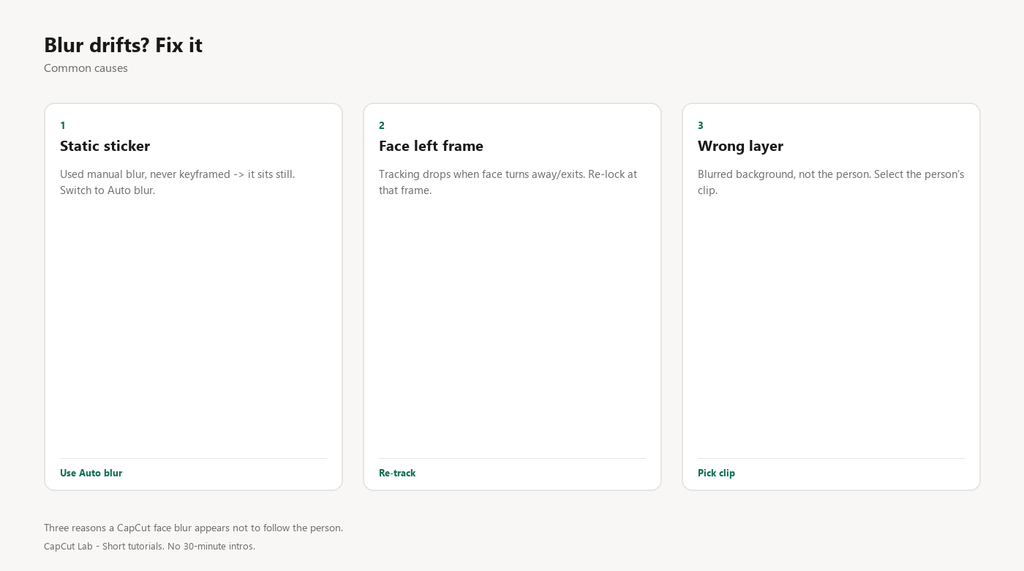
The manual blur (from Stickers or Overlay > Blur) is a fixed rectangle. It does not follow anything unless you keyframe it frame by frame. Auto blur is the one that detects and tracks the face for you.
Fix
- Select the clip. Phone: tap the clip > tap ‘Blur’ in the toolbar > choose ‘Auto blur’ (face icon). Desktop: click the clip > right panel > Video > Blur > Auto blur.
- CapCut scans the frame and drops a tracked mask on the face.
- If you instead used Stickers > Blur, that rectangle stays put – delete it and switch to Auto blur.
2. Tracking lost because the face left frame or turned away
Auto blur tracks the detected face. If the person turns fully away or walks out of frame, detection drops and the blur freezes at the last known spot.
Fix
- When tracking is lost, tap the clip, reopen Auto blur, and re-tap the face to re-lock it.
- Desktop: in the right panel, scrub to where tracking broke and click ‘Track’ to resume from that frame.
- If the face goes off-screen for a stretch, split the clip and blur only the portion where it is visible.
3. You blurred the wrong layer (whole frame instead of the person)
A blur applied as a project-level adjustment hits the entire frame. To hide just a face you must apply Auto blur to that specific clip, not add a full-frame blur overlay.
Fix
- Make sure the clip containing the person is selected, not the background layer.
- Use Auto blur on that clip – it masks the face only.
- If you added a Blur adjustment to the whole project, remove it; that blurs everything.
4. Manual blur needs keyframes but you never set them
If you insist on the manual rectangle sticker, it only follows the face when you keyframe its position on every frame the face moves. Without keyframes it sits at frame 1.
Fix
- Select the blur sticker and open its Position.
- Add a keyframe at the start where the face is.
- Move the playhead, drag the sticker onto the face again – CapCut adds a second keyframe.
- Repeat across the clip so the rectangle tracks the motion.
5. Effect dropped on export or after an update
A version bug or a project saved before a crash can strip the blur layer. Exporting with a cached or interrupted render sometimes omits overlays.
Fix
- Update CapCut to the latest build.
- Before exporting, scrub the whole timeline to confirm the blur is still present.
- Export at normal settings; if it still drops, redo the Auto blur after the update.
Pro tip: Auto blur is far less work than manual keyframing. Only use the manual rectangle when Auto blur mis-identifies (e.g., two similar faces) – then keyframe the rectangle yourself.
FAQ
How do I blur a face in CapCut on my phone?
Select the clip, tap the clip, choose ‘Blur’ from the toolbar, then ‘Auto blur’. CapCut detects and follows the face automatically.
Why does my blur not move with the person?
You used a static blur sticker. Use Auto blur (phone: clip > Blur > Auto blur; desktop: right panel > Video > Blur > Auto blur) which tracks the face.
Can CapCut blur multiple faces?
Yes. After Auto blur locks the first face, tap ‘Add’ / ‘+’ to detect and track another face in the same clip.
Why did the blur disappear after export?
A version or cache bug can strip overlays. Update CapCut, recheck the timeline before exporting, and export at default settings.
Does face blur work on photos too?
Yes. On a photo clip, Auto blur still detects and masks the face; since the photo is static, the blur just stays in place.