A timeline that stutters, skips frames, or freezes for a second at the start of every clip makes precise editing impossible. The important thing to understand up front: CapCut lag is usually about the preview, not your project. The preview window renders effects, transitions, and full-resolution frames in real time, which is far more demanding than the one-time render the exporter does. A video that plays perfectly after export while choking in the timeline is the most common version of this — and it means your project is fine and your settings aren’t.
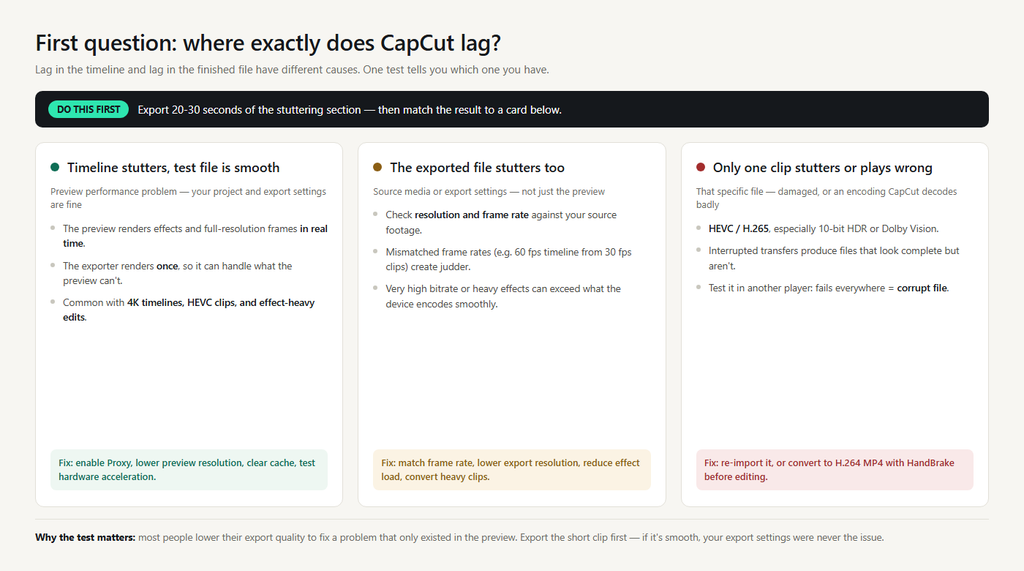
Diagnose by where the lag shows up, then apply that fix. The whole process takes about ten minutes.
Fix 1: Export a short test to separate preview lag from project lag
Before touching settings, export 20-30 seconds of the section that stutters.
- The test file is smooth, the timeline isn’t → it’s preview performance. Skip to Fix 2; nothing is wrong with your export settings.
- The test file stutters too → the problem is your source media or the export settings (resolution, frame rate, effects load), not the preview.
- Only one clip stutters → that file is corrupt or uses an unsupported encoding. Go to Fix 5.
This one test prevents the most common mistake: lowering your export quality to chase a problem that was never in the export.
Fix 2: Turn on Proxy and lower the preview resolution
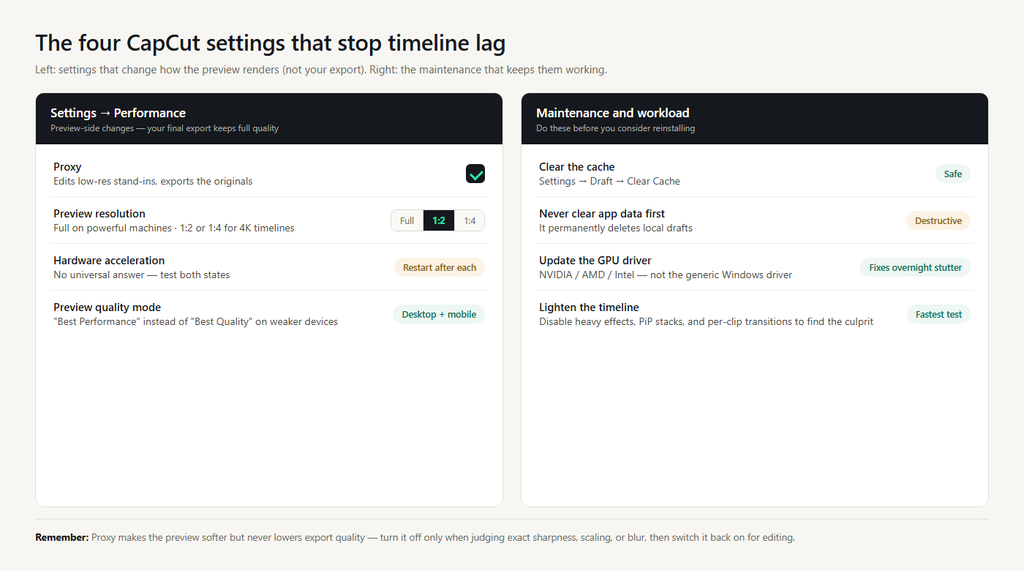
These are the two settings that fix most CapCut lag, and neither affects the quality of your final video.
Proxy (desktop: Settings → Performance → Proxy). CapCut creates low-resolution stand-in copies of your clips for editing and swaps in the full-resolution originals at export. Editing 4K footage with Proxy on feels like editing 1080p. Turn Proxy off only when you’re judging exact sharpness, scaling, or blur — the preview will look softer than the export.
Preview resolution. On desktop, use the quality selector at the bottom of the preview player (Full / 1:2 / 1:4, or “Best Quality” vs “Best Performance”). On mobile, look under Settings → Performance. Full quality for powerful machines; 1:2 or 1:4 for everything else, and definitely for 4K timelines.
Fix 3: Test hardware acceleration in both positions
There is no universally correct answer for this setting, and CapCut’s own guidance recommends different states for different symptoms. Go to Settings → Performance, toggle hardware acceleration, restart CapCut, and test the same section. Then try the opposite state. Whichever your machine handles better is your answer — just remember to restart the app between changes, or nothing actually reloads.
While you’re here, update your GPU driver (NVIDIA, AMD, or Intel — not the generic Windows display driver). Outdated drivers are a frequent cause of stuttering that appears overnight.
Fix 4: 4K, HEVC, and HDR footage is the real workload
Most “my phone or laptop can’t handle CapCut” complaints trace back to the source files, not the hardware. High-bitrate 4K, HEVC/H.265 files, and 10-bit HDR clips require far more decoding power than H.264 1080p — and several Android users have reported 4K HDR playback specifically becoming unusable in CapCut since late 2025.
Turn HDR off at the source where you can. On Android phones: Camera → Advanced video options → disable HDR10+ or enhanced HDR modes. Older footage already shot in HDR can be converted to standard H.264 MP4 with HandBrake before you import it.
If you shoot 4K because you want the flexibility to crop, that’s fine — convert to proxies or lower-resolution copies for the edit and keep the originals for the final export.
Fix 5: Clear the cache, not the app data
CapCut accumulates render cache that can become corrupt and slow playback to a crawl. Use the in-app path: Settings → Draft → Clear Cache (or Settings → Storage on mobile). This is safe and doesn’t touch your projects.
Do not clear app data or reinstall as a first move. Clearing app data permanently deletes local drafts, and a reinstall rarely fixes lag that a cache clear and a Proxy toggle would have solved in a minute. If you must reinstall, back up drafts first.
Fix 6: Reduce the load on the timeline
If lag persists on a heavy project, temporarily disable the expensive layers to find the culprit:
- Heavy effects, blur, and animated text
- Picture-in-picture stacks and multiple video layers
- Long transitions between every clip
Split very long projects into sub-projects, then combine the exported sections. And close browsers, games, and other editing software while you work — CapCut competes with them for RAM and GPU.
On mobile, check battery optimization. Samsung and other Android skins throttle aggressively even on flagship phones. Set CapCut to Unrestricted under Settings → Battery → App battery usage.
FAQ
Why is CapCut lagging but my exported video is smooth? Because the preview renders effects and high-resolution frames in real time, while the export renders once. Turn on Proxy, lower preview resolution, and clear the cache — don’t lower your export quality.
Does Proxy reduce my export quality? No. Proxy uses low-resolution copies for editing only; the export uses the original full-resolution media. Turn Proxy off when judging exact image quality, then back on for editing.
Should hardware acceleration be on or off? Test both. Restart CapCut after each change and compare the same section. Keep whichever is smoother on your machine.
Why does only one clip lag or play incorrectly? That clip is likely corrupt or uses an encoding CapCut struggles with (often HEVC or HDR). Remove it in a duplicate of the project to confirm, then re-import or convert it to H.264 MP4.
Will clearing CapCut data fix the lag? It may, but it deletes local drafts permanently. Clear the in-app cache first — it’s the safe equivalent.