Text is the most fragile thing in CapCut because it fails in three different places, and each failure points to a different cause. Text that never appears in the editor is usually a layer or timing problem. Text that looks fine in preview but is missing from the export is usually a rendering or export-path problem. Text that changes font or disappears after you update CapCut is usually the known custom-font bug in recent builds. Diagnose by where the text disappears, not by re-exporting and hoping.
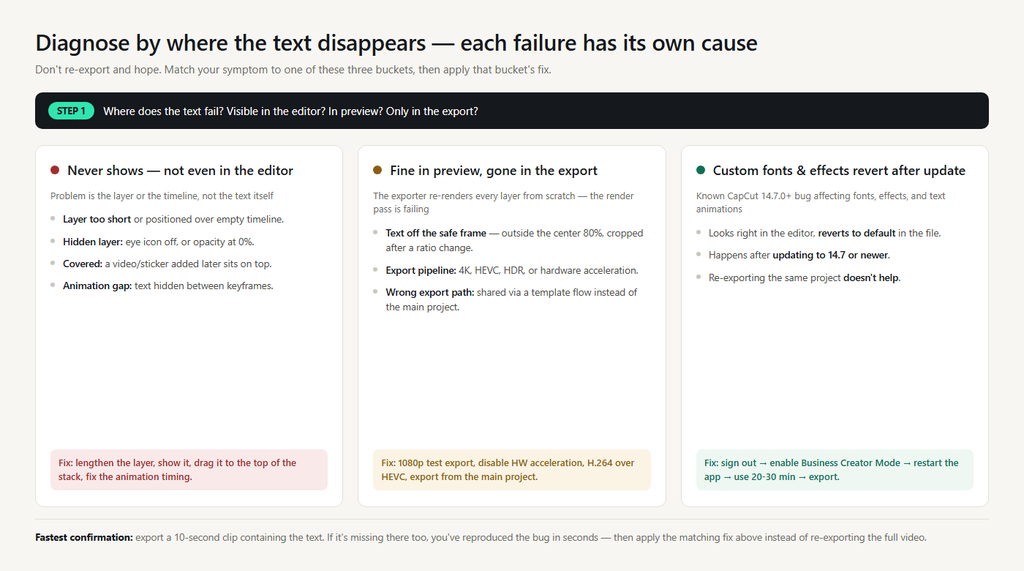
Fix 1: Text never shows in the editor — check the layer, not the text
If the text doesn’t appear while you’re editing, it’s almost never the text itself. Work down this checklist:
Is the layer long enough and in the right place? A text layer that’s a fraction of a second long, or positioned over a part of the timeline where there’s no video, is easy to miss. Zoom into the timeline and confirm the text track spans the section where you expect it.
Is the layer visible? Tap the text element and check for the eye icon. CapCut lets you hide layers; a hidden text layer still exists and still exports as nothing. Also check opacity — a layer sitting at 0% renders invisibly.
Is something covering it? Text renders in layer order. If you added the text and then added a video, sticker, or effect on top, the later layer can cover it. Drag the text track to the top of the stack.
Does it only appear in a small window? Text with an entrance and exit animation is invisible between its end keyframe and the next one. If your text pops in, disappears, and never comes back, the animation timing — not the text — is the problem.
Fix 2: Text is off the visible frame (the silent crop)
This one produces text that exists but can’t be seen, and it’s the most common cause of “my text disappeared” complaints on social video. CapCut lets you drag text anywhere, including below the visible area or into the margins that get cropped.
The safe zone is the center 80% of the canvas. Text dragged to the very bottom or top edge can sit inside CapCut’s preview but outside the frame that actually exports — especially if you changed the aspect ratio mid-project. If you switched from 9:16 to 16:9 (or 1:1) after placing text, the text’s saved position can land entirely outside the new canvas.
Set your aspect ratio first, then position text, then check it in full-screen preview before exporting. Platforms crop differently too: what fits in CapCut’s 9:16 preview can be cut by TikTok or Reels overlays — keep titles and captions out of the bottom fifth of the frame.
Fix 3: Custom fonts and effects disappear after export — the 14.7+ bug
If your text shows correctly while editing, changes to a default font or vanishes entirely after export, and you recently updated CapCut, you’re likely hitting the rendering bug that affects custom fonts, effects, and text animations in versions 14.7.0 and newer. The font is still applied in the editor; the exporter fails to render it.
Confirm it’s the bug: export a short test clip with one custom font and one effect. If both revert in the export, it’s the bug — and re-exporting the same project won’t help.
The fix that works for most people: sign out of your CapCut account, go back into Settings, turn Business Creator Mode on, then fully close and reopen the app. Re-open the project and use it normally for 20-30 minutes before exporting again. If that feels too invasive, the lighter workarounds are: switch the text to a built-in CapCut font (external fonts are the usual trigger), or duplicate the text layer, delete the original, and export — rebuilding the layer clears the corruption.
Fix 4: Text vanishes on export — rendering or export-path issues
When text is visible in preview but missing from the final file and you’re not on the custom-font bug, the cause is usually the export pipeline itself. The editor shows a cached preview; the exporter re-renders every layer from scratch, and that pass can fail.
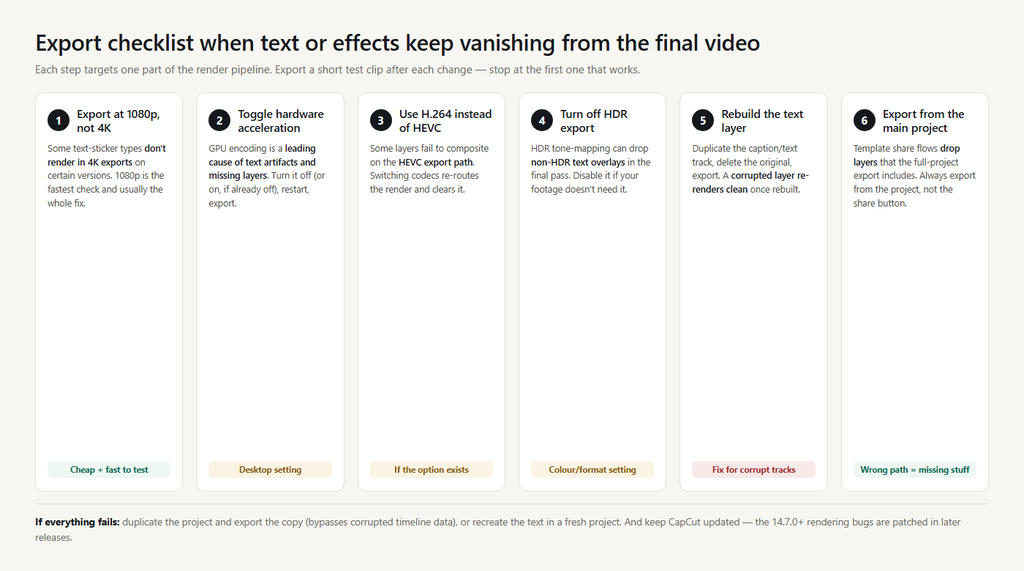
Try these in order, exporting a short test clip after each change:
- Export at 1080p instead of 4K. Some text-sticker types don’t survive 4K export in certain versions.
- Turn off hardware acceleration (desktop: Settings → Performance or Export). GPU encoding is a leading cause of text artifacts and missing layers; if it’s already off, turn it on instead.
- Switch from HEVC to H.264 in export settings if the option exists.
- Turn off HDR export if it’s enabled.
- Rebuild the layer: duplicate the text/caption track, delete the original, export. If only auto-captions are affected, regenerate them and redo your small corrections.
- Export from the main project, not a template share flow. Exporting through a template’s share button can drop layers that the full-project export includes.
What to try when none of the above is it
Restart CapCut and clear the cache. Rendering glitches that follow a crashed export often clear on a clean launch. On Android: Settings → Apps → CapCut → Storage → Clear cache. On iPhone there’s no manual cache clear — offload and reinstall the app (after confirming your drafts are backed up).
Duplicate the project and export the copy. This bypasses corrupted timeline data in the original file and is the most reliable “just make it work” move for text that refuses to render.
Test in a fresh project. Import a clip, add one text layer with a built-in font, and export. If it renders there, the problem is project-specific — rebuild the text layers in the new project rather than debugging the old file.
Update CapCut — or roll it back. The 14.7+ rendering bugs are patched in later releases; check for an update first. If the problem started after an update you can’t revert, that’s more evidence it’s the known bug, and Fix 3’s sign-out procedure is your best move.
FAQ
Why is my CapCut text visible in preview but not in the exported video? Usually a rendering issue — try 1080p export, disable hardware acceleration, or switch H.264/HEVC. If you recently updated CapCut and use custom fonts, it’s likely the 14.7+ rendering bug.
Why did my text disappear when I changed the video to 9:16? The text’s saved position was calculated for the old canvas. After changing aspect ratio, re-drag the text into the center 80% of the frame.
My auto-captions won’t show in the export, but normal text does. Regenerate the caption layer, or duplicate it and delete the original. Caption tracks can corrupt independently of text layers, especially in longer videos.
Do hidden text layers export? No. A layer with the eye icon off, or at 0% opacity, is excluded from the export. Confirm every text layer is visible before you export.