Slug: capcut-reverse-not-working · Meta description: ** CapCut reverse not doing anything, greyed out, or only half-working? Fix the 5 real causes – Reverse disabled on still or short clips, you used Boomerang instead, a symmetric clip shows no change, audio reverses with it, and a Speed or cache conflict – with exact phone and desktop steps.
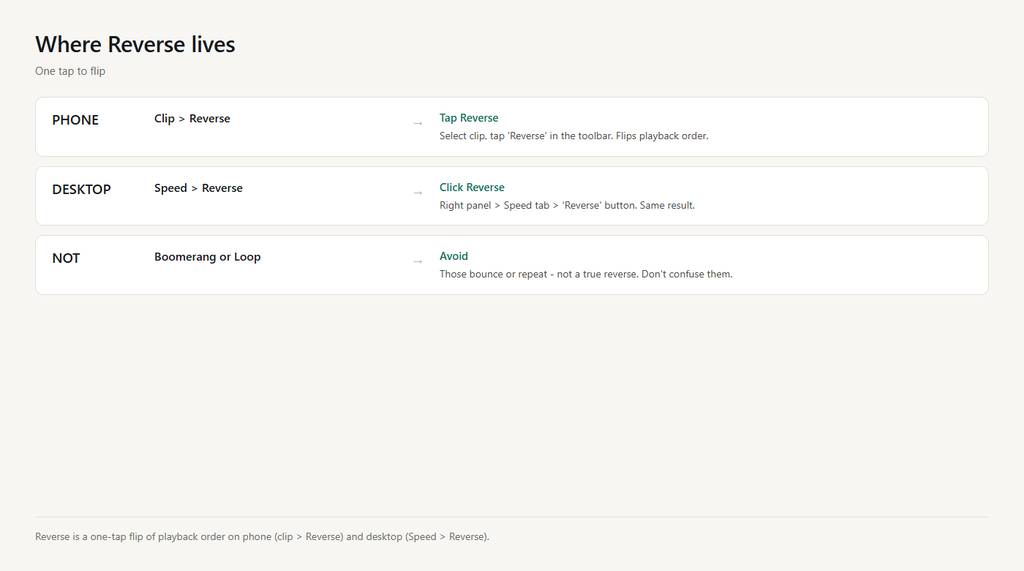
Quick check: open the clip and confirm you tapped ‘Reverse’, not ‘Boomerang’ or ‘Loop’. Reverse flips the playback order so the end of the clip plays first. Boomerang plays forward then backward (ping-pong) and Loop just repeats – both can look like reverse failed when they are different tools. Also confirm the clip is a real video with motion; Reverse is disabled on photos and tiny clips. One more check: after reversing, watch the very first frame. If the action now starts from its original ending pose, reverse worked – if it still starts the same way, you likely applied a Loop or Boomerang or the effect didn’t take (fixes below).
Problem 1: Reverse is greyed out or not clickable
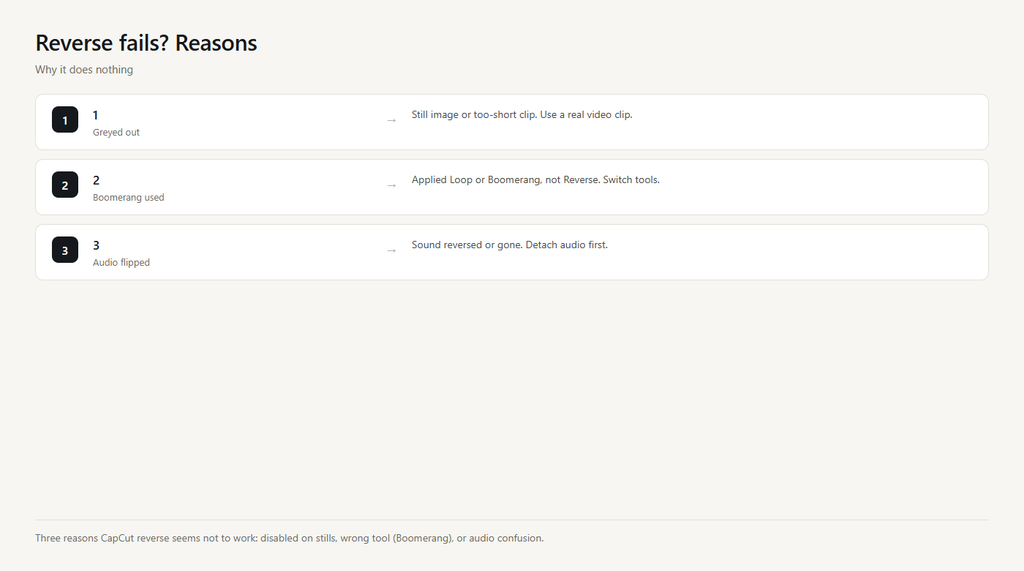
Reverse is disabled for still images, clips that are only a few frames long, or merged or overlay layers that aren’t a clean video track. CapCut has nothing to flip on a frozen frame, so the button stays inactive.
- Confirm it is a real video clip with motion. On phone tap the clip and check for a filmstrip; on desktop make sure the video track (not an image or adjustment layer) is selected.
- If the clip is too short, split a longer clip (phone: swipe toolbar > Split; desktop: right-click > Split) and reverse just that segment.
- If it is a merged clip, long-press or right-click > ‘Ungroup’ or ‘Detach’ to expose the underlying video, then Reverse becomes available.
- On desktop, click the actual video layer in the timeline, not a linked audio or effect layer.
Problem 2: You used Boomerang or Loop instead of Reverse
Boomerang plays forward then backward, and Loop repeats the clip – neither produces a true backwards-only playback. Users expecting ‘the end plays first’ see the clip redo itself and think reverse is broken.
- Delete the Boomerang or Loop effect. Phone: tap the clip > the effect chip > delete; desktop: select the layer and remove the effect.
- Apply true Reverse. Phone: select clip > ‘Reverse’ in the toolbar; desktop: right panel > Speed > ‘Reverse’.
- Preview: the last frame of the original should now be the first frame – that confirms a real reverse.
- If you want the forward-then-back bounce, Boomerang is correct – just know it is not a pure reverse.
Problem 3: Reverse worked but shows no visible change
Some clips look identical forwards and backwards – a perfectly symmetric action, a spinning object, or a looping GIF has no directional tell, so reversing it appears to do nothing even though the order flipped.
- Test on clearly directional footage (someone walking, a ball thrown, text scrolling) – the change is obvious there.
- Scrub to the original end frame and confirm it now appears at the start after reversing.
- If a clip is genuinely symmetric, reverse won’t read as different; use a different clip or add a direction marker (for example on-screen text) to show the flip.
- This is expected behavior, not a bug – the playback order did change.
Problem 4: Audio reverses or vanishes after Reverse
Reverse flips the audio track too, producing backwards gibberish, and some users then mute the whole clip and think reverse ‘broke’ the sound. Usually you want the video reversed but the audio either removed or kept forward.
- Before reversing, detach the audio. Phone: tap the clip > ‘Extract audio’ or tap the mute icon; desktop: right panel > detach audio or mute.
- Reverse only the video layer; re-add a fresh (forward) audio track or leave it silent as you prefer.
- If you want the reversed video with no sound, just mute the reversed clip after applying Reverse.
- Do not rely on the reversed audio – backwards speech is rarely usable.
Problem 5: Reverse conflicts with Speed or a cache glitch drops it
Applying Reverse on top of a speed ramp or Optical Flow can drop the effect, and a stale cache can leave the clip playing forward even after you tapped Reverse. The fix is order and a cache clear.
- Apply Reverse FIRST, then any Speed change or Optical Flow – stacking them in the wrong order can cancel the reverse.
- If it didn’t take, clear the cache. Phone: Settings > Apps > CapCut > Storage > Clear cache; desktop: CapCut > Settings > Clear cache.
- Restart CapCut, reopen the project, and re-apply Reverse on the clean video clip.
- Export a short test to confirm the clip now plays backwards in the saved file.
FAQ
How do I reverse a video in CapCut?
Select the clip and tap ‘Reverse’ (phone) or open the right panel Speed tab and click ‘Reverse’ (desktop). The clip’s playback order flips so the end plays first.
Why is the reverse option greyed out in CapCut?
Reverse is disabled on still images, very short clips, or merged or overlay layers. Use a real video clip with motion, split a longer clip, or ungroup a merged clip to enable it.
Does reverse work on CapCut PC / desktop?
Yes. Click the clip, open the right panel Speed tab, and click ‘Reverse’. The same rules apply – it must be a real video clip with motion.
Why did my audio get weird after I reversed?
Reverse flips the audio too, creating backwards sound. Detach or mute the audio before reversing the video, then add a fresh forward audio track if you need sound.
What is the difference between Reverse and Boomerang in CapCut?
Reverse plays the clip backwards only (end first). Boomerang plays forward then backward in a loop. They are different tools – use Reverse for a true backwards clip.