Slug: capcut-slow-motion-not-smooth · Meta description: ** CapCut slow motion stuttering instead of silky? Fix the 5 real causes – plain Speed without Optical Flow, low-fps source, low export frame rate, Optical Flow blocked on still or merged clips, and dropped interpolation on export – with exact phone and desktop steps.
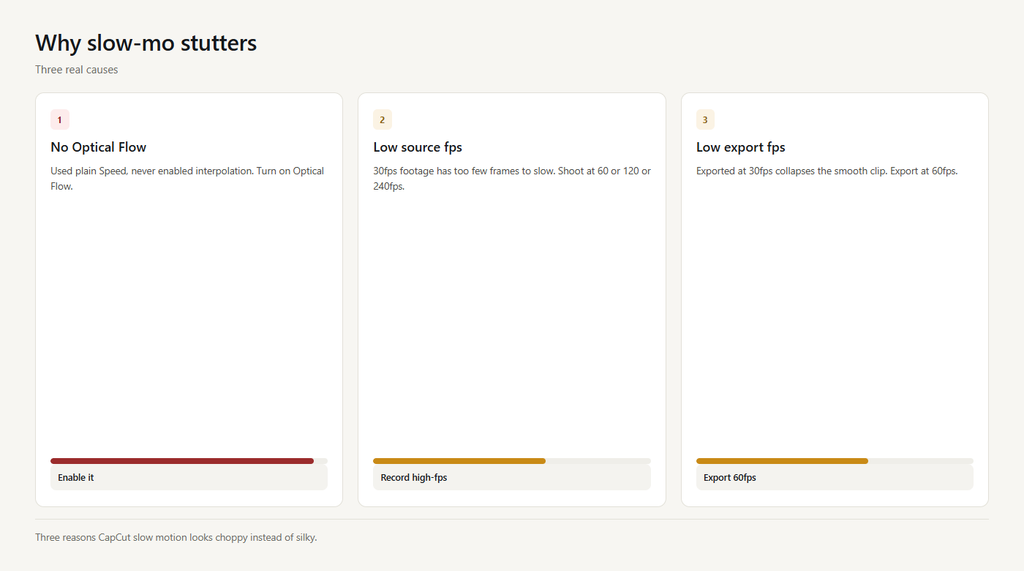
Quick check before the fixes: open the clip, tap Speed, and look at the mode. If you only dragged the speed handle down and there is no Optical Flow toggle engaged, CapCut is replaying your existing frames more slowly – it is not creating new ones, so motion looks like a slideshow. Optical Flow is the only mode that generates the in-between frames that make slow motion smooth. Also confirm your source: a 30fps clip can only ever give you 30 unique frames per second. Even with perfect interpolation, slowing 30fps footage to 0.25x leaves at most about 7 smooth frames per second of real motion – so part of the fix is shooting at 60, 120, or 240fps in the first place.
Problem 1: You used plain Speed instead of Optical Flow
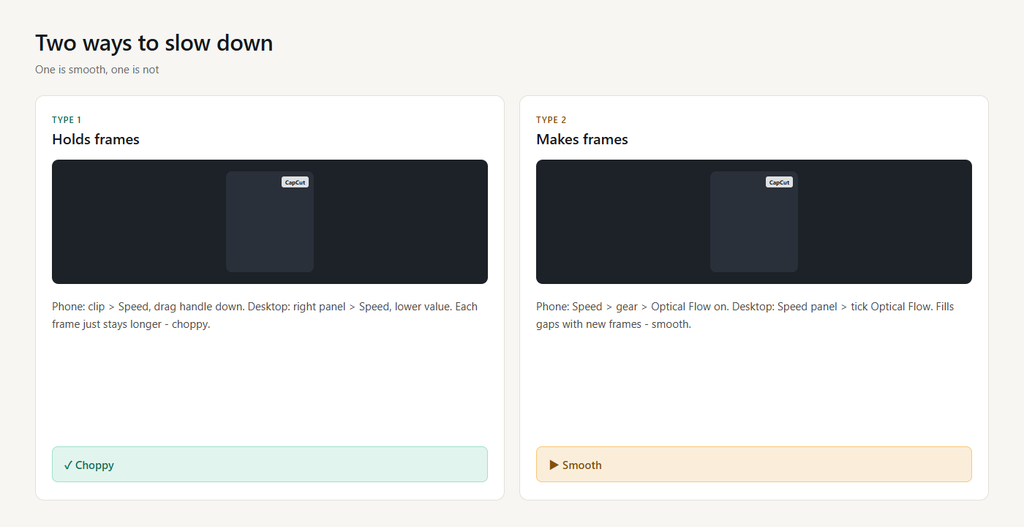
Dragging the speed handle lower just holds each original frame on screen longer. The motion still only has as many distinct images as the source, so it stutters. Optical Flow analyzes adjacent frames and renders synthetic in-between frames, which is what actually makes slow motion look fluid.
- Select the clip. On phone tap the clip then ‘Speed’ in the toolbar; on desktop click the clip and open the right panel ‘Speed’ tab.
- Turn on Optical Flow. Phone: tap the speed value, then the gear or ‘…’ icon and toggle ‘Optical Flow’ on. Desktop: in the Speed panel tick the ‘Optical Flow’ checkbox.
- Replay the slowed section – the gaps between original frames are now filled with interpolated frames and the motion is smooth.
- If Optical Flow was already on, the cause is one of the fps issues below, not the mode.
Problem 2: Your source footage was shot at 30fps or lower
Slow motion quality is capped by the footage you record. A 30fps clip slowed to 0.25x means CapCut must show 30 frames across 4 seconds – roughly 7.5 unique images per second of screen time. No interpolation can invent detail that was never captured, so it still reads as choppy.
- Check the source frame rate. On desktop, select the clip and read ‘FPS’ in the right panel; on phone, note the frame rate your camera app recorded at, since CapCut does not always surface it.
- Reshoot at a higher frame rate. Set your phone camera to 60fps, 120fps, or 240fps (Slo-mo mode) before recording the action.
- Re-import the high-fps clip and apply Optical Flow slow motion – now there are enough real frames for CapCut to interpolate between.
- As a rule, slow to about one quarter of your capture fps: 240fps source to 60fps slow output looks great, while 30fps source to 30fps slow output is the ceiling.
Problem 3: You exported at a lower frame rate than the timeline
Even if the timeline plays smoothly, exporting at 30fps collapses your 60fps interpolated slow clip back toward choppy, because the extra frames are thrown away on output. The export frame rate must match or exceed the slowed clip’s effective rate.
- Open Export. On phone tap ‘Export’ then expand ‘Resolution / Frame rate’; on desktop open the Export dialog and find the ‘Frame rate’ field.
- Set the frame rate to 60fps or higher. Phone: pick ’60fps’ from the list; desktop: type or select 60 in the FPS box.
- Keep the resolution at 1080p and export – the slow section now keeps its interpolated frames.
- Avoid the ‘auto’ frame rate option, which can drop to 30; set it explicitly.
Problem 4: Optical Flow is blocked on a still image or merged clip
Optical Flow only interpolates real video that already contains motion between frames. A photo, a frozen frame, or a merged or overlay composite has no inter-frame movement to analyze, so CapCut either greys Optical Flow out or applies it with no effect – and the slow clip stays choppy.
- Confirm the clip is a real video layer, not a photo or sticker. On phone tap the clip and check it shows a filmstrip, not an image thumbnail; on desktop verify it is the video track, not an image or adjustment layer.
- If it is a merged clip, right-click or long-press and ‘Ungroup’ or ‘Detach’ so the underlying video is exposed.
- For a genuine still, slow motion cannot help – instead add a Ken Burns zoom (keyframe Scale) to fake motion, since there are no frames to interpolate.
- Re-enable Optical Flow on the now-exposed video clip and replay.
Problem 5: Interpolation dropped on export because of low resources or cache
On weaker devices CapCut may silently skip Optical Flow rendering when memory is tight, so the preview looks smooth but the exported file reverts to held frames. A stale cache can also cause the same mismatch between preview and output.
- Close other apps and free memory, then re-open the project so CapCut has headroom to render interpolation.
- Clear the cache. Phone: Settings > Apps > CapCut > Storage > Clear cache (keeps projects); desktop: CapCut > Settings > Clear cache.
- Re-apply Optical Flow on the clip and export a 3-second test to confirm the slow section is smooth in the saved file.
- If it still drops, export at a slightly lower resolution (720p) to reduce the render load while keeping 60fps.
FAQ
Why is my slow motion choppy in CapCut?
Almost always because you used the plain Speed slider without Optical Flow, or your source was shot at 30fps. Turn on Optical Flow (Speed > gear > Optical Flow) and record at 60, 120, or 240fps for smooth results.
What does Optical Flow do in CapCut slow motion?
It generates synthetic in-between frames by analyzing motion between existing frames, so the slowed clip has many more images per second and looks fluid instead of strobing. It is the key setting for smooth slow motion.
How do I make smooth slow motion on CapCut iPhone?
Tap the clip, choose Speed, drag the speed down, then tap the gear and enable Optical Flow. Also make sure you recorded the clip in your camera’s Slo-mo (120 or 240fps) mode.
Why does my slow-mo look fine in preview but choppy after export?
Your export frame rate is probably 30fps, collapsing the interpolated frames, or the device skipped Optical Flow during render. Export at 60fps, clear the cache, and close other apps before exporting.
Can I get smooth slow motion without shooting at 120fps?
Partly. Optical Flow helps a lot, but it cannot invent detail that was never recorded. A 30fps source will always look softer than a 240fps source slowed the same amount – shoot high-fps for the best result.