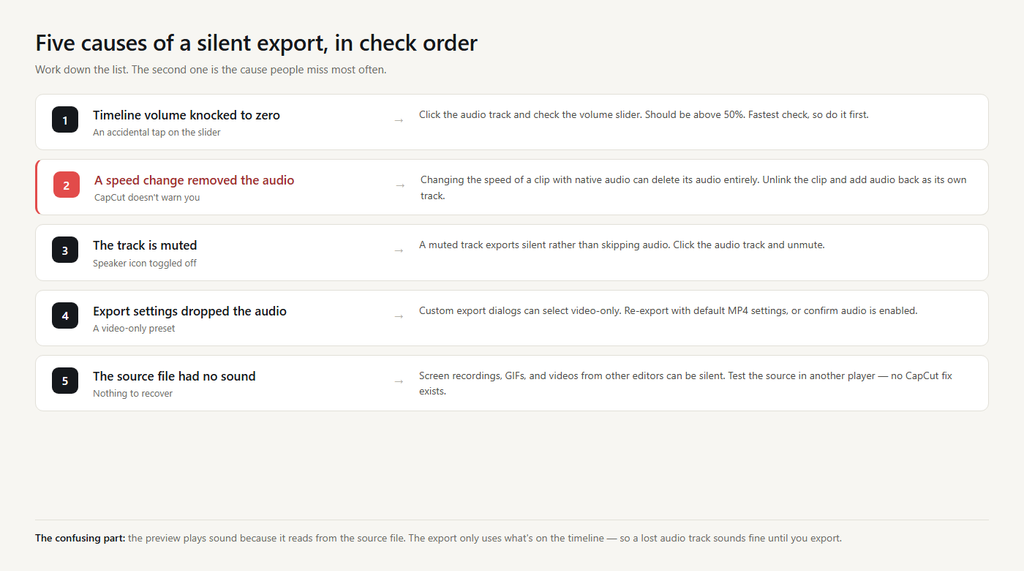
A silent export is the most disorienting CapCut problem because the video looks fine in the timeline, plays back with sound inside the editor, and then comes out quiet. The gap between preview and export is what throws people — they don’t know where to look.
Five things cause it, and the most common is also the easiest to miss.
Fix 1: Check the timeline’s audio level first
Before doing anything else, look at the audio track in the timeline. CapCut has a per-clip volume slider that can get knocked to zero by an accidental tap. Click the audio track, look for the volume slider, and confirm it’s somewhere above 50%.
If the timeline shows a healthy volume but the export is still silent, the problem is downstream.
Fix 2: The audio was removed by a speed change
This is the cause that catches the most people, because CapCut doesn’t warn you when it happens.
If you applied a speed change to a clip that had its own native audio, CapCut sometimes removes the audio entirely to keep the speed change clean. The video plays back in the editor with the original sound because it’s reading from the source, but the export has nothing to play.
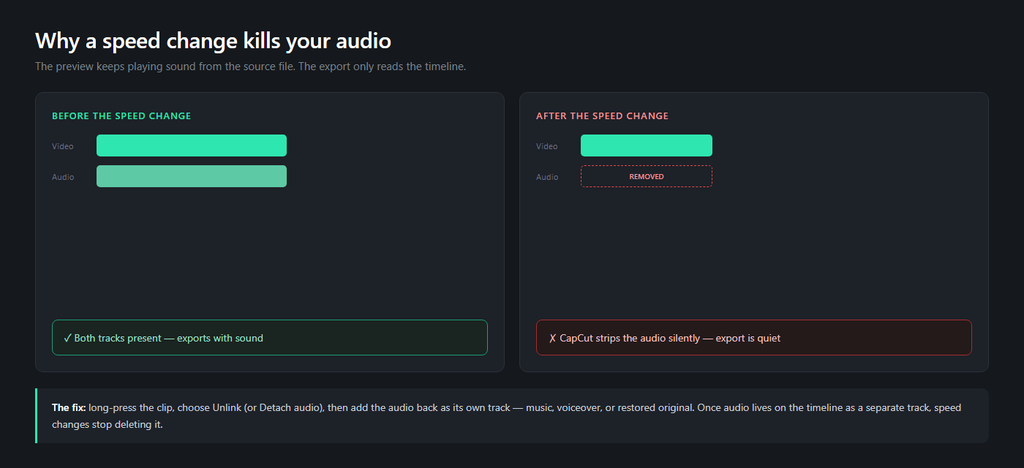
The fix is to split or replace the audio. Long-press the clip, choose Unlink (or Detach audio depending on version), then either restore the original audio, drop in a music track, or re-record a voiceover. Once you do this, the audio is part of your project rather than a side-effect of the source clip, and the speed change no longer strips it.
Fix 3: The clip’s audio was muted accidentally
Each track in the timeline has a mute toggle. A misplaced tap on the speaker icon silences the track without removing the audio — so the export plays out quiet rather than skipping the audio entirely.
Click the audio track and look for a muted icon. Unmute if it’s muted, and check the volume slider at the same time.
Fix 4: A specific export setting is dropping the audio
If you’re exporting through a custom export dialog rather than the default tap, check that audio is actually included in the export. The “Export” button has settings under a small dropdown or gear icon; in some versions you can accidentally choose a video-only preset, particularly on older builds.
Re-export using the default settings, or open the export dialog and confirm the audio track is enabled and the format is MP4 with both streams. A “video only” preset is the kind of mistake that’s obvious in retrospect and infuriating in the moment.
Fix 5: Your source footage didn’t have sound to begin with
The export matches what’s on the timeline. If the source file you imported was a screen recording, GIF, or video from an editor that stripped the audio, then no fix in CapCut will help.
Import the original file into a different player (VLC works well) and check whether it has sound there. If the source is silent, you need to re-add audio — either a music track, a voiceover, or a re-exported version of the original that includes audio.
What to try when none of the above is it
Try a different export format. Some combinations of codec and container handle audio differently. If you’re exporting in a custom format, switch to the default MP4 and see whether sound comes back.
Restart CapCut before exporting. In-memory state can cause the export to use stale settings. A full close and reopen forces a clean read of the timeline.
Test on a small clip. If the problem only happens with a specific project, build a tiny one-minute test project with the same export settings. If the test exports with sound, the problem is in your project. If it doesn’t, the problem is in your settings or app.
FAQ
Why does my video have sound in CapCut but not in the export?
Most often the audio got removed by a speed change, the track got muted, or the export settings dropped the audio. Check the timeline’s audio level first, then the track mute toggle, then the export settings.
Does speed change remove audio?
Sometimes, yes — CapCut removes the original audio from clips that had native sound and had their speed changed. The fix is to unlink the clip and add audio back as a separate track.
Can I fix a silent export by editing again?
Yes, if the cause was on the timeline. Re-add the audio track, unmute, or re-export with audio enabled. If the source file itself was silent, no CapCut change can fix it.
Why is the audio fine in my preview but gone in the export?
The preview uses the original file’s audio, but the export uses only the audio on the timeline. If the timeline audio was lost, the export is silent even when the preview sounded right.
Does CapCut Pro fix silent exports?
No. Silent exports come from timeline state and export settings, neither of which a subscription changes.